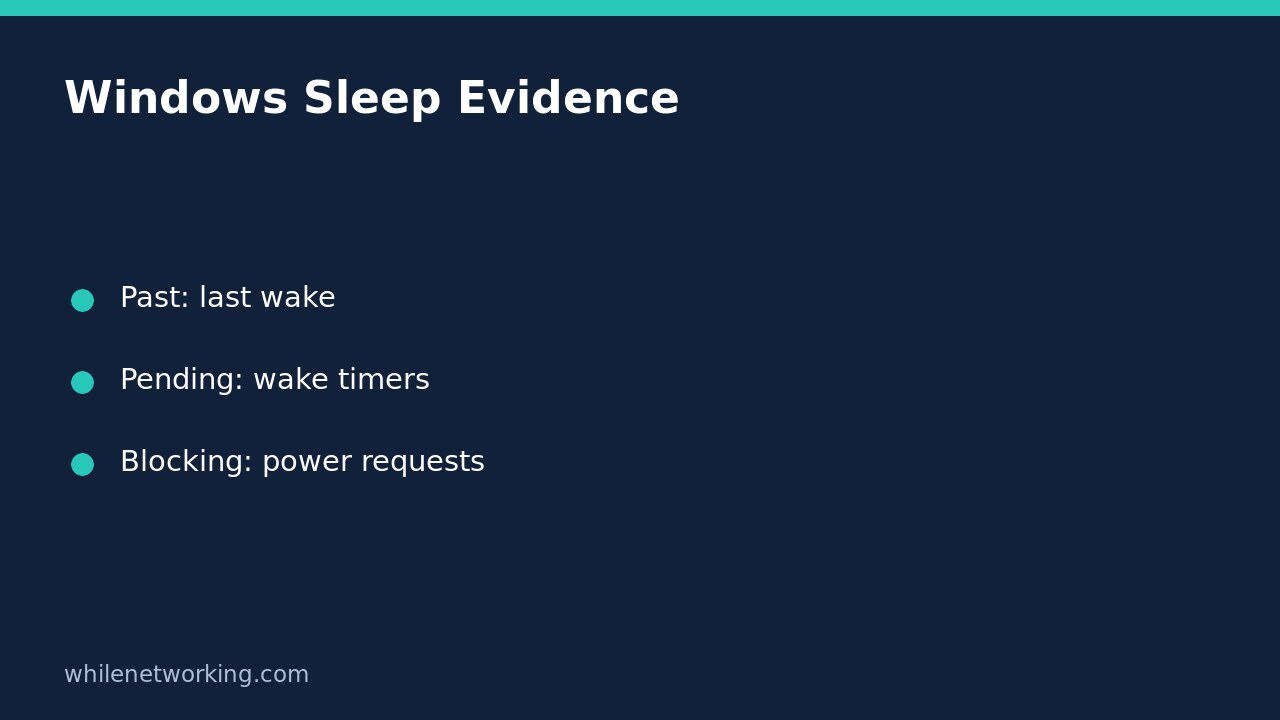

A Windows wake timer lists a scheduled opportunity to wake the computer; it is not a history of what woke it. Use powercfg /lastwake for the last sleep transition, powercfg /waketimers for active timers, and powercfg /requests for software or driver requests that may prevent automatic sleep. Keeping these questions separate avoids disabling the wrong feature.
This tutorial is an evidence-collection workflow, not a universal fix for overnight wakes. The commands below inspect information without changing your power plan, disabling devices or overriding applications.
Identify whether sleep failed or ended early
First describe what you observed. Did the computer never seem to sleep, or did it clearly sleep and then become active again? A dark display alone does not prove the whole machine entered a low-power sleep state. Record the approximate time, whether it was plugged in, and whether the event followed a deliberate Sleep selection or automatic idle timeout.
Save your work before a controlled sleep test. Avoid testing during updates, backups, remote support or other tasks that need the computer awake. On a managed work PC, collect evidence for IT rather than changing scheduled maintenance.
Capture the last wake immediately after the event
Open Start, type Command Prompt, and choose Run as administrator using an authorised administrator account. Then run:
powercfg /lastwakeMicrosoft describes this as reporting information about what woke the system from the last sleep transition. Copy the complete output and note when you collected it. Capture it before another sleep cycle replaces the event you intended to investigate.
If it identifies a device or source, treat that as a lead to investigate. If it is blank or unhelpful, do not invent an explanation. Hardware capabilities, sleep behaviour and available reporting can differ. A single command result is not a complete overnight activity log.
Check active timers as a separate snapshot
Next run:
powercfg /waketimersMicrosoft states that this enumerates active wake timers and that, if enabled, timer expiration can wake a computer from sleep or hibernation. Record any reported owner and expiration time. This is a snapshot of active timers when you ran the command, not a list of timers that necessarily fired earlier.
For a hypothetical example, suppose the PC woke around 02:00, but your 08:00 check shows a timer scheduled for tonight. That future timer does not establish the cause of the earlier wake. Conversely, no active timers at 08:00 does not prove that there were none at 02:00. Keep observation time and event time separate in your notes.
Do not immediately disable all wake timers. A listed timer might support a legitimate backup, maintenance task or other approved job. First identify the owner and ask whether waking the machine is intentional.
Use power requests for the different problem of staying awake
powercfg /requestsThis command enumerates application and driver Power Requests. Microsoft explains that these can prevent the display from automatically powering off or prevent the computer entering low-power sleep. That is a different mechanism from a timer waking an already sleeping system.
If a media application appears, stop playback normally and repeat the check. If a backup application appears, wait for the job to finish rather than terminating it. Preserve the before-and-after observations. A request that disappears after the activity ends may be expected behaviour, not a fault.
Avoid copying /requestsoverride commands from unrelated advice. An override changes behaviour and can hide a legitimate reason the machine needs to remain awake. Nothing in this evidence-only procedure requires an override.
Build a useful support handoff
Keep the three outputs together instead of sending a cropped screenshot of just one line. For regular upkeep, add this record to your PC maintenance routine.
- Observed sleep or wake time, including the date.
- Whether sleep was manual or automatic, and AC or battery power was in use.
- Full last-wake output collected immediately afterwards.
- Active timers, their owners and the time of collection.
- Power requests and any normal application activity that explains them.
Review copied output before sharing publicly: process paths and task names may reveal usernames or internal details. Share unredacted evidence only through an appropriate support channel.
Quick questions
Does an active timer prove it woke the PC? No. It describes an active timer, not a completed historical event.
Does an empty requests list mean the PC must sleep? No. It only means this snapshot did not report those requests; other settings and conditions still matter.
What needs rolling back? These inspection commands do not change power settings. If later troubleshooting introduces a change, record the original value and restore it if the change does not help.
Official reference and safety
Command meanings and syntax: Microsoft Learn powercfg command-line options.
This article is for educational purposes. Test carefully before using steps in production. The site owner is not responsible for misuse, damage, data loss or production issues. Follow organisational policy before changing power management on a work device.