
In the evolving landscape of digital threats, the window between an attacker gaining access to your credentials and you realizing it is often narrower than expected. Cybercriminals have moved beyond simple brute-force attacks; they now employ sophisticated techniques like session hijacking, credential stuffing, and insider threats that leave little trace in traditional logs. Recognizing the subtle indicators of a compromised account before data exfiltration occurs is critical for minimizing damage. This guide outlines specific behavioral anomalies, technical red flags, and practical steps to secure your digital presence immediately upon suspicion.
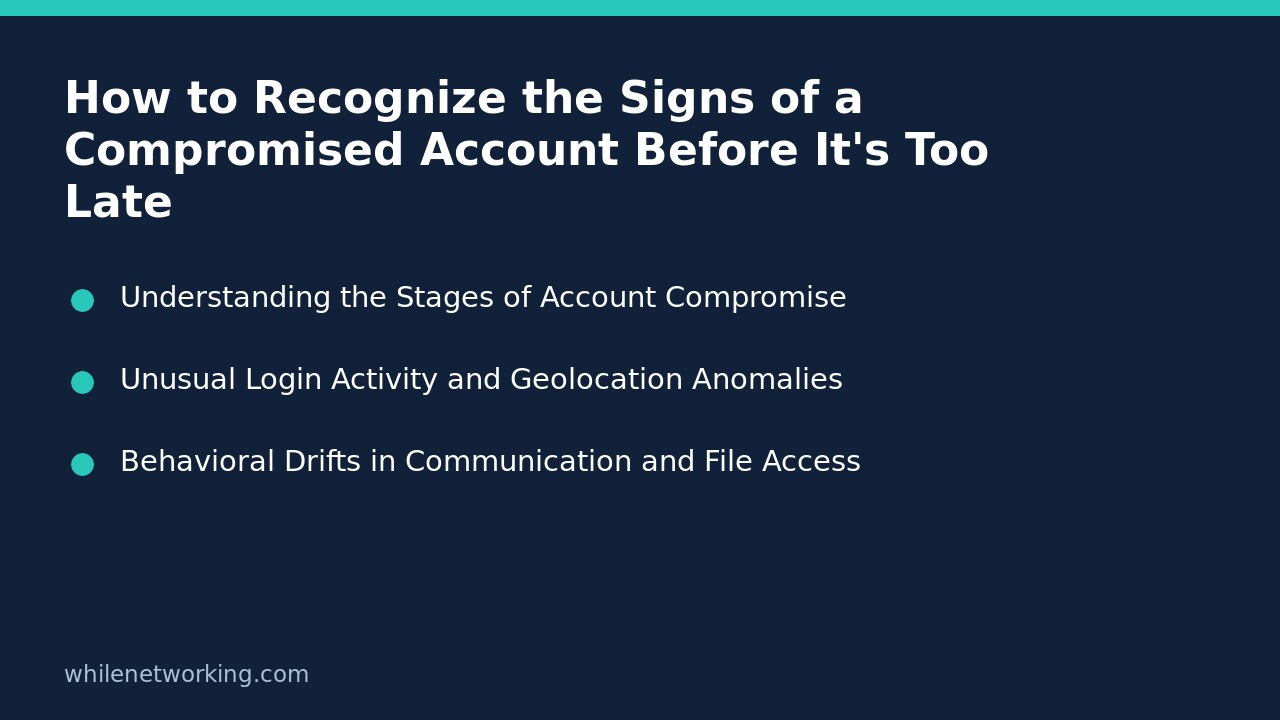
Understanding the Stages of Account Compromise
To identify a breach early, it helps to understand how attackers operate. Most compromises follow a pattern: initial access via stolen credentials, lateral movement within an organization or across platforms, and finally data exfiltration. The “quiet” phase is often when users are most vulnerable to detection failure. During this stage, the attacker may simply be reading emails or monitoring activity without deleting logs. Therefore, the signs of compromise often manifest not as system crashes, but as strange behaviors in your daily workflow.
Unusual Login Activity and Geolocation Anomalies
The most immediate sign of a compromised account is a login event that defies your normal usage patterns. Every legitimate user has a “behavioral baseline”—a specific set of devices, IP addresses, time zones, and browsers they use. When an attacker uses your credentials, they may not log in from your home office immediately; instead, they might access your account from a different continent or using a mobile device you never own.
Check your security settings for “Recent Activity” logs. Look for:
* Logins occurring at times when you are asleep or away from work.
* IP addresses associated with countries you have never visited.
* Unfamiliar devices listed in your session history, often labeled as “Unknown” or generic names like “Chrome on Windows” appearing on a device you don’t recognize.
Real-World Example: A marketing manager noticed an email notification about a password change request coming from an IP address in Russia while they were working remotely in Canada. Upon investigation, the session had been active for 20 minutes before being terminated by the user. This delay allowed the attacker to read several sensitive client communications before the session was killed.
Behavioral Drifts in Communication and File Access
Subtle changes in how you interact with your account can indicate a hijacker is present. If your email inbox suddenly contains mass unsolicited emails, phishing campaigns, or messages that do not match your professional tone, your account is likely compromised. Similarly, if you notice files being uploaded to cloud storage services (like Google Drive, Dropbox, or OneDrive) that you did not create, or if your document editing history shows changes you didn’t make, an intruder has gained read-write access.
Another common sign is the appearance of new contacts in your address book or calendar invitations scheduled for times you are unavailable. Attackers often use these tools to establish persistence or to set up future “spear-phishing” campaigns against your network from the inside. If you find yourself receiving alerts about password resets that you did not initiate, assume the account has been accessed and secured by an unauthorized party.
Technical Indicators: Unknown Applications and Permissions
Modern operating systems and browsers provide security layers that can reveal hidden threats. One of the most dangerous signs is the presence of unknown applications installed on your device or unexpected permissions granted to web services. For example, if a browser extension appears in your toolbar that you do not recall installing, it could be a keylogger designed to capture keystrokes.
On corporate networks, administrators may notice spikes in outbound data traffic originating from a specific user’s endpoint. This is a strong indicator of data exfiltration. Additionally, check for changes in file permissions or ownership on critical servers. If you have write access to a folder that suddenly becomes read-only, or if your admin credentials are being used to execute commands in a server room where you do not work, the compromise has likely escalated beyond simple credential theft.
The Role of Multi-Factor Authentication (MFA) Failures
A frequent precursor to full account takeover is the degradation of security controls. If you find that MFA prompts are no longer appearing on your registered devices, or if backup codes have been generated without your knowledge, the attacker may be actively trying to disable these protections. Some sophisticated malware attempts to intercept MFA tokens by injecting code into the browser session.
If you receive a notification stating that “your account has been locked” or “security settings have been updated,” do not panic immediately, but verify the source instantly. However, if you see messages claiming that MFA is being disabled for “security reasons” from an unknown source, this is a definitive red flag. Legitimate security teams rarely disable MFA; they usually enforce it more strictly.
Immediate Steps to Secure a Suspected Compromise
If you recognize any of the above signs, act immediately. The following steps can halt an active intrusion:
1. Change Passwords: Use a strong, unique password that has never been used before. Avoid reusing passwords from other sites.
2. Revoke Sessions: Most platforms allow you to sign out of all active sessions instantly. Do this immediately after changing your password.
3. Regenerate Backup Codes: If you use time-based one-time passwords (TOTP) or backup codes, invalidate the old ones and generate a fresh set.
4. Scan for Malware: Run a full system scan using reputable security software to ensure no keyloggers or remote access trojans are present.
5. Contact Support: If you suspect corporate data theft, notify your IT security team immediately so they can audit logs and isolate the affected endpoint.
Conclusion: Vigilance as a Defense Strategy
Recognizing the signs of a compromised account requires a shift from passive monitoring to active vigilance. By understanding behavioral baselines, monitoring for geolocation anomalies, and checking for technical irregularities like unknown apps or permission changes, you can detect intrusions before significant data loss occurs. Remember that no single security measure is foolproof; layering these checks creates a robust defense. Always prioritize the protection of your credentials and maintain an updated inventory of your active sessions and devices to stay one step ahead of evolving cyber threats.