
When you intentionally listen through one headphone, some stereo material can seem incomplete. Increasing the volume is not a good first answer to a channel-mixing question. Windows 11 has a Mono audio switch that combines the stereo channels for listening. It is a reversible accessibility preference, not a repair for broken hardware and not a promise to recover information absent from the recording.
Establish the listening arrangement
Start by describing what you are using: wired headphones, a Bluetooth headset, external speakers or another output. Confirm which device is selected for playback before changing preferences. A test through the wrong output does not tell you whether mono mixing helped the headphones you intended to assess.
Use familiar, non-sensitive recorded material at a comfortable low volume. Do not use emergency announcements, a live customer call or confidential meeting audio as test content. If you normally need particular accessibility or hearing-device arrangements, retain them and ask your support provider before changing anything that affects them. This article concerns a Windows preference, not medical advice.
Know what the Mono audio switch does
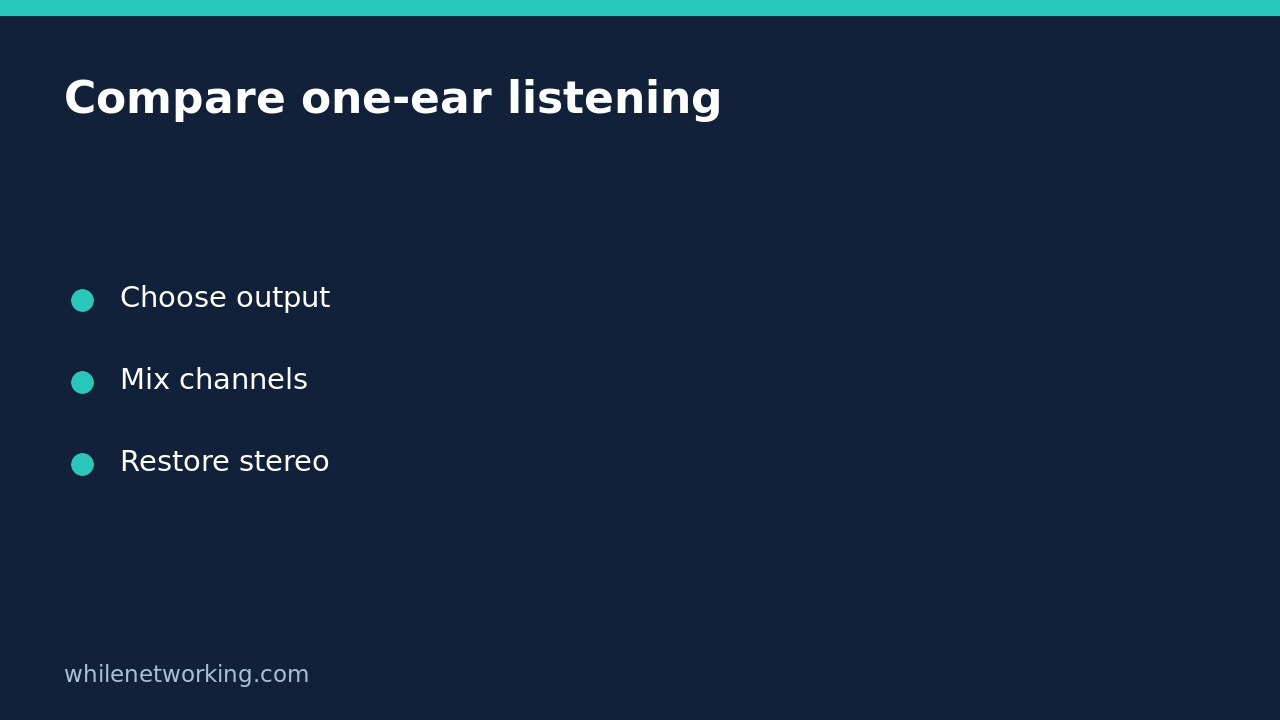
Microsoft’s Windows hearing guide describes converting stereo sound into a single channel so the content can be heard when using one headphone. Its documented Windows 11 route is Start, Settings, Accessibility, Audio, then the Mono audio toggle. Record the original switch state and turn it on for a comparison if it was off.
Keep other variables fixed. Do not simultaneously change the default output, application volume, equaliser, balance and headset firmware. If several things change, you lose the ability to attribute the result. A simple off-versus-on comparison using the same passage is more informative than a large collection of unrelated audio tweaks.
Use the accessibility flyout only if it suits your workflow
Microsoft’s Accessibility Flyout guidance provides another documented access route. It describes opening Quick settings with Windows key plus A, navigating to Accessibility, and using the Mono audio toggle. It also states that mono combines left and right channels into one. If the flyout layout differs on your build, the Settings route is the clearer fallback.
You do not need to enable Narrator or another accessibility feature merely to reach Mono audio. In particular, avoid turning on a screen reader unexpectedly on a shared machine. The flyout documentation is useful for keyboard and screen-reader navigation, but it does not require changing every feature in the menu. These are documentation-based steps; no Windows GUI execution is claimed here.
Compare the same short passage twice
Choose a brief section of familiar audio and note what seems incomplete through your intended single headphone. Play the same section with mono enabled at the same comfortable volume. Note whether speech or other content is easier to follow. If the source already sounds the same in both states, record no noticeable difference rather than forcing an improvement.
For a hypothetical example, a training clip might put a speaker or sound prominently on one side. The reader can compare whether combining channels makes that material more accessible in their one-headphone arrangement. That observation applies to that recording and output. It is not evidence that every online meeting, game or media application has been tested.
Separate mixing from output and microphone faults
If there is no sound at all, first record that symptom. Mono mixing does not establish that the correct output is connected or that an application is sending sound to it. If the headset has an intermittent cable or connection, a one-time successful passage does not prove the hardware is repaired. Keep those investigations separate and avoid compensating by steadily raising the volume.
Likewise, playback configuration is not proof about microphone capture. Another participant hearing your voice, an application recording a microphone, and you hearing both playback channels are different observations. Do not change meeting microphone permissions just because you are investigating listening. Ask your organisation’s support team before changing managed audio or communications settings.
Decide whether stereo information matters for the task
Mono is useful for some listening arrangements, but stereo positioning can be important in other work. Before evaluating an audio mix, checking left-right separation or doing a task that depends on directional sound, review whether the accessibility mixing preference is still enabled. Tell collaborators if your playback arrangement differs from the one they expect.
Record a task-specific decision: ‘keep mono for this one-headphone reading session’, ‘restore stereo for the next listening task’, or ‘no improvement; investigate output separately’. A preference is not a performance score. You can reasonably choose different arrangements for different tasks, provided you know which state you are using and do not describe a mono listening comparison as a stereo-quality test.
Restore the original state and retain a clear note
To roll back, return to Accessibility, Audio and restore the original Mono audio value. Replay the same harmless passage to confirm the arrangement is back where you intended. If you are sharing your screen with support, first review private information; our guide to clearing pinned clipboard items before screen sharing covers one useful precaution.
This article is educational only. Test carefully before production use, follow organisational policy and keep listening volume comfortable. We accept no responsibility for misuse, damage, data loss or production issues. The useful outcome is a documented, reversible listening preference that fits your actual task, not an unsupported claim that a single switch repairs every headset or improves every recording.