
Use PowerShell’s Get-Acl to read a Windows folder’s security descriptor before asking someone to change permissions. It can show the owner and access-control entries without resetting inheritance, granting access or taking ownership. The important boundary is that an ACL listing is evidence about configured rules, not a complete effective-access calculation for a particular user.
This is a defensive inspection workflow for folders you are authorised to review. The cmdlet documented here is Windows-only. Run the example in Windows PowerShell or PowerShell on Windows, not a Linux PowerShell session inside WSL.
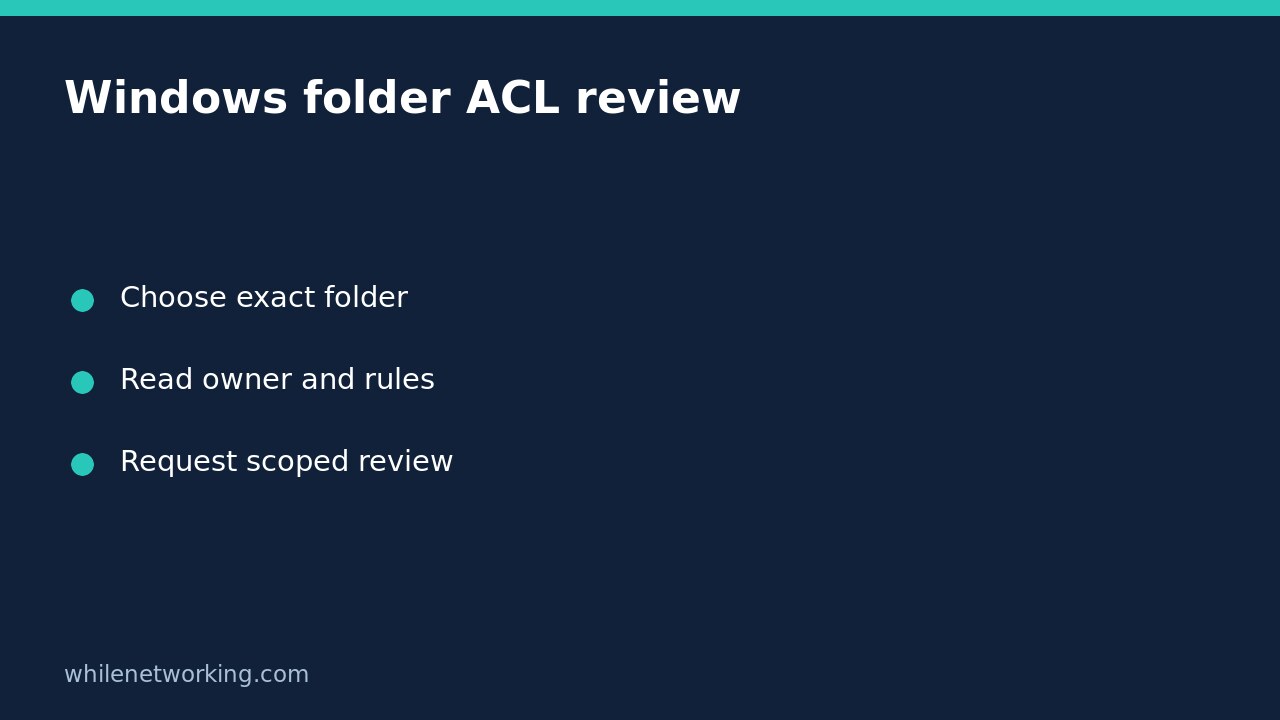
Choose the exact folder rather than a broad scan
Start with one affected folder and the exact operation that fails: opening a document, creating a file, renaming a file or deleting one are different tasks. Record the error and whether the path is local or a network share. Do not immediately change the entire parent drive to address one failed action.
Use -LiteralPath so square brackets and other wildcard-like characters in the name are treated literally. If you omit the path, Get-Acl inspects the current directory, which may not be the folder the user reported. A valid result from the wrong directory is still misleading evidence.
Read the owner and access entries
The following read-only example inspects the Windows directory as an accessible starting point. For a real investigation, replace the path with the single approved folder. It does not enumerate every descendant or modify the folder.
$folder = $env:WINDIR
$acl = Get-Acl -LiteralPath $folder -ErrorAction Stop
$acl | Format-List -Property Path, Owner, AreAccessRulesProtected
$acl.Access | Format-Table -Property IdentityReference, AccessControlType, FileSystemRights, IsInherited, InheritanceFlags, PropagationFlags -AutoSize
The first display identifies the resource, its owner and whether its access rules are protected from inheritance. The second shows individual access entries. Table output is a reading aid, not a structured export, and long values can be truncated in a narrow console. If a particular entry is unclear, inspect it with list formatting instead of inferring missing text.
-ErrorAction Stop makes a non-terminating cmdlet error stop this sequence. If inspection is denied or the folder is missing, retain the error and ask the responsible administrator to collect the record. Do not run a permission-reset command merely to make inspection succeed.
Read each field without overclaiming
- IdentityReference: the account or group named in the entry. This is not necessarily the person currently running an application.
- AccessControlType: whether that entry is Allow or Deny. Do not interpret one Allow row in isolation from the rest of the applicable security context.
- FileSystemRights: the rights represented by that entry. A permission relevant to reading is not automatically permission to create, replace or delete.
- IsInherited: whether that entry was inherited. It does not mean the entry is unimportant or that changing this folder will safely fix all children.
- InheritanceFlags and PropagationFlags: how the rule is intended to apply through a hierarchy. A folder’s listing is not proof that every existing child has identical entries.
The owner field is also not a declaration that the named owner can currently complete every application action. Avoid treating ownership, group membership and effective file access as interchangeable facts.
Separate the folder rules from the user’s actual access
For a support case, identify the affected user’s account, the application identity and the requested operation. An application running as a service may use a different identity from the signed-in user. Network paths also introduce share permissions and server-side context; a local folder ACL alone does not settle the full network-access question.
If group membership needs investigation, this local-administrator inventory tutorial explains a separate membership check. Being listed in that group does not itself prove that the current process has an elevated token or that the requested file operation will succeed.
Prepare a narrow change request
Send the approved support team the exact folder, inspection time, affected account, failed action, relevant error and the owner/access output through an approved channel. ACLs can disclose internal account names and folder structure, so redact unrelated details before external sharing.
Ask the team to establish effective access and propose the smallest suitable change. Any actual change should have its own approval, record of the original security descriptor and recovery plan. Do not casually disable inheritance, take ownership or grant Everyone full control. None of those changes is needed for this read-only workflow.
Quick questions
Does an empty audit display mean no access occurred? No. This example reads access rules, not access history. Microsoft documents -Audit separately for reading audit rules in the system ACL; audit configuration is still not an event-history report.
Do I need a rollback after running this example? No permissions were changed. Keep or dispose of the captured evidence under your organisation’s information-handling policy.
Source and safety
Microsoft’s Get-Acl reference documents the security descriptor, literal paths, output properties and Windows platform requirement.
This tutorial is for educational purposes. Test carefully before using steps in production. The site owner is not responsible for misuse, damage, data loss or production issues.