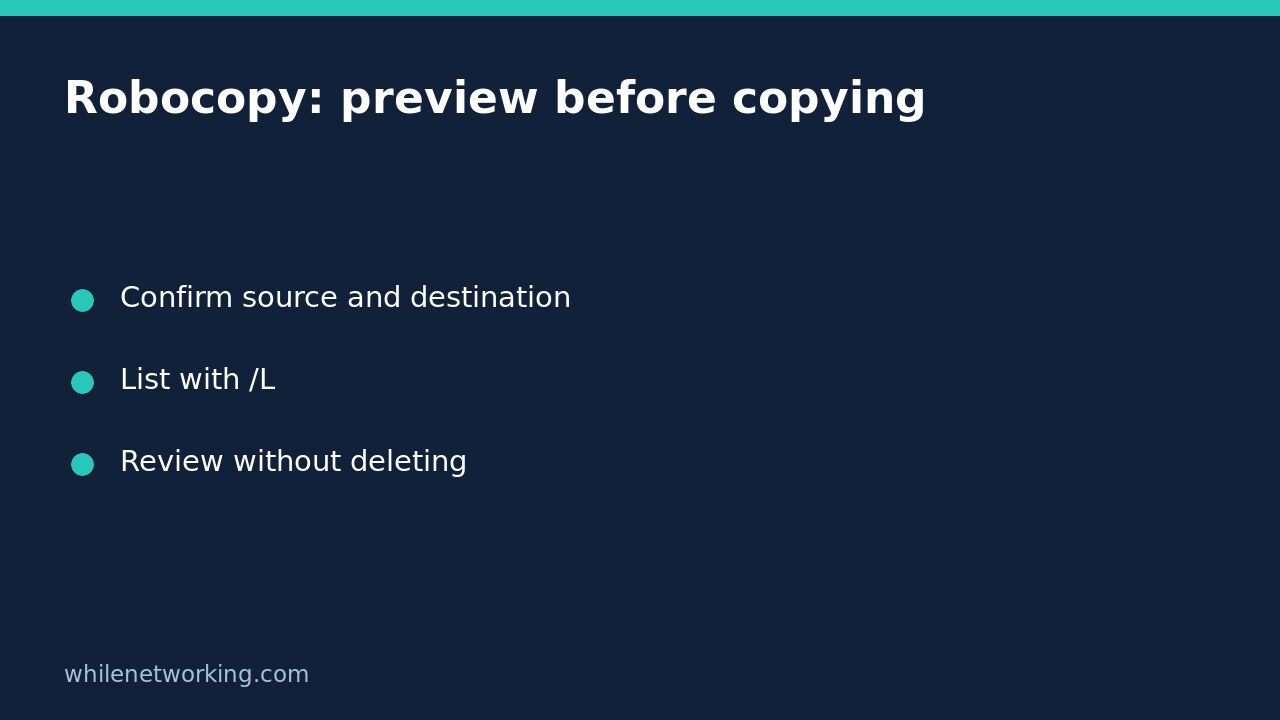

To preview which files a Windows folder-copy command would select, use Robocopy with /L. Microsoft documents this as list-only mode: files are listed rather than copied, deleted or time stamped. This is useful when checking a source folder, a destination folder and the effect of including subfolders before authorising a real transfer.
A preview is not a backup, a content comparison or proof that the later copy will succeed. Keep the originals and review the entire command before using it. The workflow below deliberately avoids mirroring, moving and deletion options.
Confirm the two folder paths first
Open Command Prompt and identify an existing source folder and an existing destination folder that you are authorised to inspect. Use small disposable folders for your first practice run. In the example, C:\CopyPractice\Source and D:\CopyPractice\Destination are placeholders; substitute your actual paths and do not assume that drive D is a removable backup disk.
Check both paths in File Explorer. The source is where files come from; the destination is where a later copy would place them. Reversing the arguments reverses the comparison. Do not experiment with a drive root, a shared production folder or an unfamiliar command copied from a forum.
Run a list-only comparison
Enter this as one line in Command Prompt after replacing the paths. This article presents a documented Windows example, not a claim that a transfer was executed on your computer.
robocopy "C:\CopyPractice\Source" "D:\CopyPractice\Destination" /E /L /FP /BYTES /R:0 /W:0/E includes subdirectories, including empty ones. /L is the essential preview switch. /FP displays full file paths and /BYTES prints sizes in bytes. The retry settings specify zero retries and zero waiting time rather than accepting Robocopy’s large default retry count. They do not turn inaccessible files into accessible ones.
There is no /LOG option or output redirection here. A log option can write a report even when the file operation is list-only; do not describe every command containing /L as leaving the entire machine unchanged. Console output can also expose private folder names, so review it before sharing.
Read the selection, not just the final number
Check that the output header names the intended source and destination, and that the displayed options include list-only mode. Then review the listed paths and summary. A file selected for copying in a preview has not been copied. A skipped file has not been proven byte-for-byte identical to its counterpart merely because Robocopy did not select it under the current rules.
For example, a practice source might contain a new text file and an empty subfolder, while the destination contains an unrelated old note. Use the preview to check the intended new-file and subfolder selection. Do not treat the destination-only note as permission to delete it. This command does not contain a purge instruction.
If the scope looks wrong, stop and correct the paths or selection options while keeping /L. If access errors appear, investigate the account and folder permissions through normal authorised support channels. Do not add backup-mode or elevated-access switches simply to silence an error.
Keep preview and real copying separate
Removing /L changes the operation from a listing to a real copy. That is a separate decision, not the next automatic troubleshooting step. Review possible replacement of existing destination files and retain a recoverable copy of anything important before approving writes. A preview cannot reserve free space, freeze changing files or prove future network availability.
Avoid adding /MIR, /PURGE, /MOV or /MOVE to this beginner workflow. Microsoft describes mirror as including purge behaviour, while move options remove source items after copying. A safe preview does not make a later destructive command safe when /L is removed.
After an independently authorised copy, validate important files separately. The tutorial on comparing an original file with a USB copy using PowerShell explains a different verification task. Keep the originals until your retention and recovery requirements are satisfied.
Quick questions before you finish
- Did the preview create my backup? No. Listed selections are not transferred data.
- Does a matching size prove matching contents? No. Use an appropriate content-integrity check for important files.
- Can I save the output? Yes, but creating a log is a write operation and can reveal filenames. Choose a safe location and review it.
- What should I retain? The reviewed paths, options and any errors, without unnecessary personal information.
Source: Microsoft’s Robocopy reference, including list-only, copy, retry and logging options.
This tutorial is for educational purposes. Test carefully before using commands in production. The site owner is not responsible for misuse, damage, data loss or production issues.