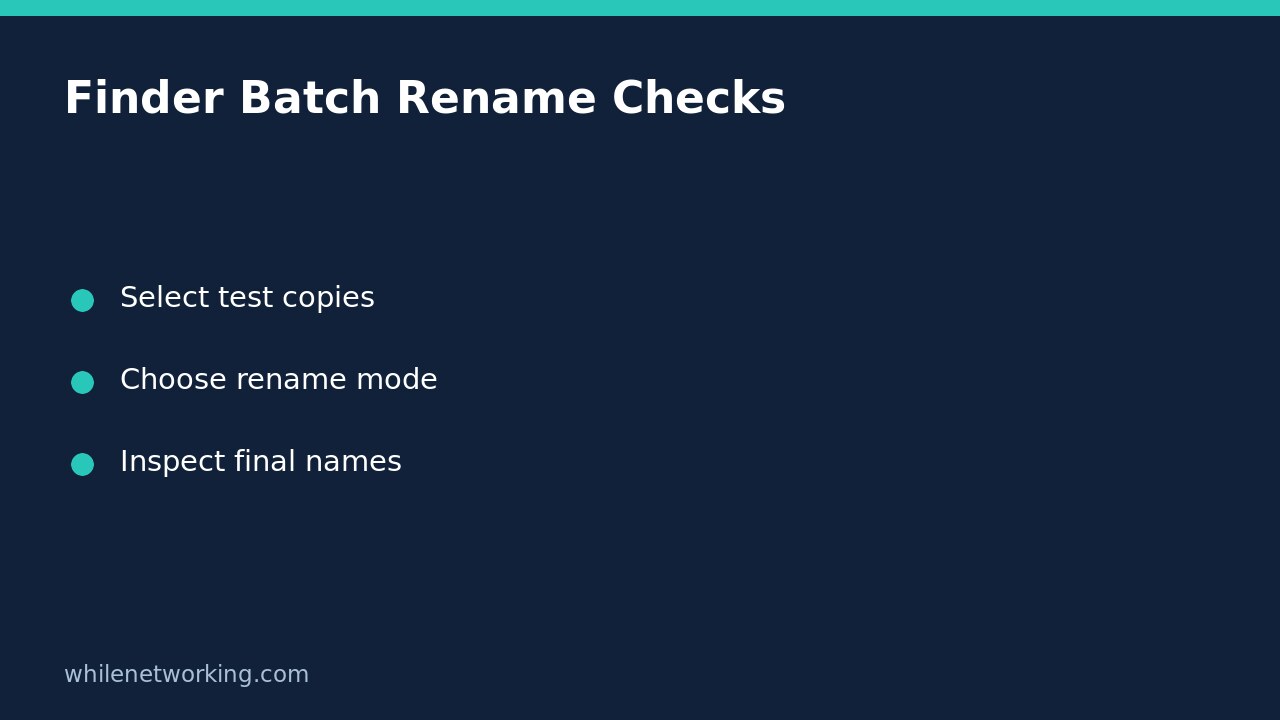

To rename several files on a Mac, select them in Finder, Control-click a selected item and choose Rename. The important decision is which mode to use: Replace Text changes a matching part of existing names, Add Text keeps the existing name while adding a label, and Format creates a new naming pattern. Choose the mode before typing, and try it on copies before touching a valuable folder.
This workflow is for ordinary documents you own, not application folders, system files or your home folder. It focuses on avoiding an unintended batch change rather than merely making filenames look tidier.
Prepare a small, disposable test folder
Create a separate folder containing copies of three or four representative documents. Include a normal filename, a filename containing repeated words, and one that should remain unchanged. Keep the originals outside that folder. For shared or synchronised working folders, coordinate with collaborators before changing real names; a successful local rename is not confirmation that every external reference has been updated.
Show filename extensions so you can see where the descriptive name ends and the file type begins. If needed, follow our guide to showing filename extensions without changing file types. A PDF should not accidentally become a differently labelled file because its extension was included in the text you replaced.
Choose Replace Text for a specific correction
Suppose your copies are named ProjectA-notes.pdf, ProjectA-budget.xlsx and unrelated-notes.pdf. Select just those copies, Control-click and choose Rename. Choose Replace Text, enter ProjectA in Find, then ProjectB in Replace with. The intended result is a changed project label in the first two names and no project-label change in the third.
These are illustrative filenames, not a claim that a particular Mac was tested. Inspect your actual results. A very short search such as A is riskier than a distinctive project label because it can match unrelated parts of filenames. Before confirming, read any example or preview shown by your version of Finder. After confirming, inspect the full names, not only the beginning of each row.
If several occurrences or unusual punctuation make the outcome uncertain, stop and use individual renames for the affected files. Batch processing is useful only when the selection and replacement rule are both unambiguous.
Use Add Text when the old names still matter
Choose Add Text when you want to mark a set without discarding its existing labels. Enter a distinctive prefix or suffix, including any separator you want, and choose whether to place it before or after the current name. For instance, adding Review- before existing names makes the batch recognisable while retaining each document’s original descriptive portion.
Do not assume adding a label changes the document’s contents, approval state or access permissions. A filename beginning Approved- is only a name; it is not evidence that somebody authorised the underlying work. Use labels that describe the actual purpose of the collection.
Use Format only when a new sequence is appropriate
Choose Format when the existing descriptive names are no longer needed. Apple documents name formats using an index, counter or date, with options for placement, a Custom Format field and a starting number. A sequence can help organise exported images, but it can also remove meaningful distinctions from filenames.
Record a before-and-after list when names must be traceable. Do not assume the numbering establishes the real capture order, document revision order or business priority. Inspect which file received each number. If the association matters, choose a smaller batch or rename individually rather than relying on an unverified ordering assumption.
Verify the batch and handle mistakes carefully
- Confirm that only the intended selected items changed.
- Check that extensions still match the original file types.
- Open a representative renamed copy in its normal application.
- Check repeated words, punctuation and unexpectedly long names.
- Keep the original copies until you are satisfied with the mapping.
If the test is wrong, discard only the disposable test copies and start again from intact originals. If originals were already renamed, stop further changes and use the recorded mapping to restore the affected names carefully. Do not perform a second broad replacement as a guess at reversal.
Quick questions before using this on real files
Does renaming convert a file? No. Changing an extension is not file conversion, and Apple warns that extension changes may prevent the creating application from opening the file.
Can I rename anything Finder displays? No. Apple specifically cautions against renaming system-provided items, application folders and your home folder. Permission or application constraints may also apply.
Source: Apple’s Finder renaming instructions and cautions.
Educational-use disclaimer: Test carefully on copies before using these steps in production. The site owner is not responsible for misuse, damage, data loss or production issues.