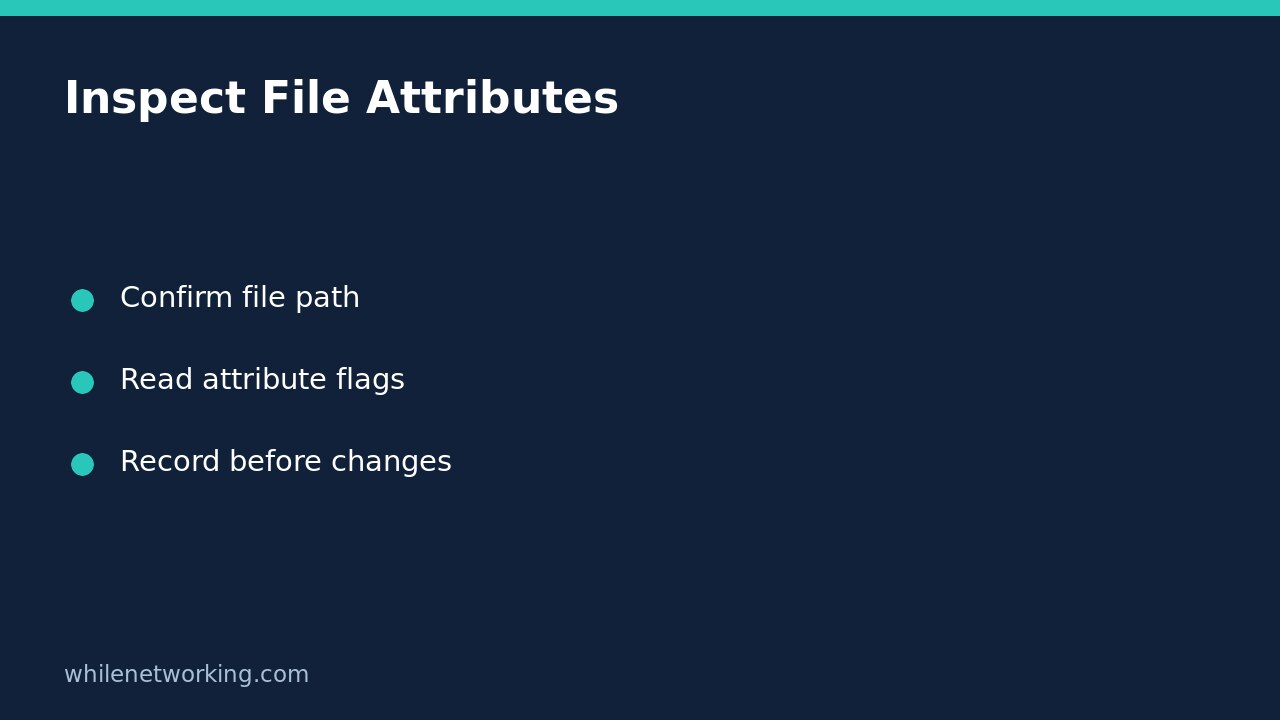

Before clearing a Windows file’s read-only flag, inspect that exact file with attrib without any plus or minus switches. This records what Windows reports without changing the flags. A read-only attribute is a useful clue, but it is not a complete explanation of why an application cannot save a document.
This workflow is for a known local file on Windows 10 or Windows 11. It deliberately avoids recursive changes, wildcard targets and attempts to modify protected system files.
Start with one confirmed file in Command Prompt
Open Command Prompt and use the full path to a file you recognise. The following is an illustrative path: replace it with your actual document location before running the command. Do not assume that your Documents folder is located there, particularly on a PC using OneDrive or redirected folders.
attrib "C:\Users\Alex\Documents\Budget Notes.txt"Keep the quotation marks when the path contains spaces. Microsoft documents that a filename can select the file to inspect, and that running attrib without parameters displays attributes for files in the current directory. An explicit filename is easier to interpret because it avoids accidentally reviewing a different working folder.
If the command reports that the file was not found, check the location and extension in File Explorer. Do not respond by adding a wildcard or applying a change to the entire drive. A failed lookup is not evidence that the file has no attributes.
Read the letters without treating them as a diagnosis
The output associates attribute letters with a pathname. Microsoft’s reference identifies R as Read-only, A as Archive, S as System and H as Hidden. Other documented flags include Offline and Not Content Indexed. Not every file has every flag, and unfamiliar cloud-related flags deserve investigation rather than removal.
- R present: the file has the read-only attribute. Record that finding before deciding whether an authorised change is appropriate.
- R absent: this does not prove that your account or application can write to the file. Access permissions, a locked document, an application rule or the storage location may still matter.
- A present: Microsoft describes this as an archive attribute used in backup-related workflows, including by xcopy. It is not a verified backup receipt or proof that a recoverable copy exists.
- H or S present: do not clear these just to make another operation work. Microsoft documents extra restrictions on changing other attributes when these flags are set.
Keep inspection separate from an actual modification
In attrib syntax, a plus sign sets an attribute and a minus sign clears it. Therefore an instruction containing a switch such as -r is a modification, not another way of asking for details. This article’s inspection command contains neither kind of switch.
Also leave out /s and /d during this first check. Microsoft documents /s as applying the command and its options through matching subdirectories, and /d as applying them to directories. A small typing error becomes much more consequential when a modifying command has a broad scope.
For a symbolic link, the reference documents /l as applying the operation to the link rather than its target. If you do not know whether a path is a link, resolve that uncertainty before making changes. Do not assume that the visible shortcut, the link and the underlying document are interchangeable.
Build a useful support note before trying a fix
Record the full pathname, the letters returned, the time of the check and the application’s exact save error. Note whether the document was opened from a local folder, removable drive or synchronised location. Avoid posting confidential paths or document names in a public support forum.
When the real concern is protecting a document before troubleshooting, use a separate verification step. Our tutorial on comparing an original file and USB copy with PowerShell addresses copy comparison; an attrib listing cannot establish equivalent file contents.
Quick questions and safe stopping points
Should I run as administrator immediately? No. Start with ordinary inspection of your own document. An access error needs investigation, not automatic elevation or a drive-wide reset.
Does no R mean the save problem is fixed? No. Reproduce the original action only when it is safe, and distinguish a successful flag inspection from successful application behaviour.
Is there anything to undo after this check? The shown command requests a listing only, so it changes no attributes. If you later approve a modification, document the original state and restrict the change to the verified target.
Source: Microsoft Learn’s attrib syntax, parameter descriptions and examples.
Educational purposes only. Test carefully before production use. The site owner is not responsible for misuse, damage, data loss or production issues.