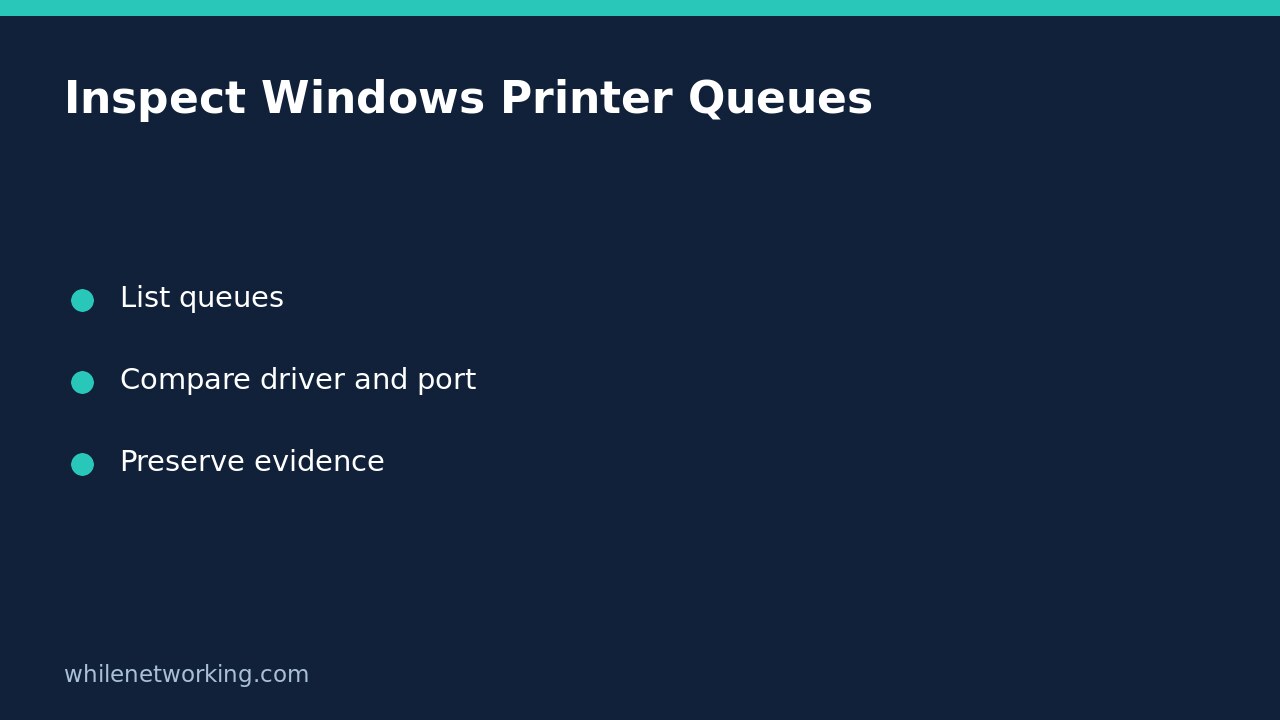

Before removing a troublesome printer, record the queues Windows already knows about. Get-Printer can list installed printers and printer connections without reinstalling drivers, clearing jobs or changing the default printer. It helps answer a narrow question: which configured queue am I actually selecting?
A listed queue is not proof that the physical device is reachable or that a document will print. Keep configuration evidence separate from a successful end-to-end print test. This workflow is for Windows PowerShell on a Windows computer with the PrintManagement module available.
Start with the local queue inventory
Open Windows PowerShell normally, not an administrator window by default. Microsoft documents that Get-Printer does not require administrator credentials. Run this read-only command:
Get-Printer -ErrorAction Stop | Select-Object Name, DriverName, PortName, SharedThe command asks the local computer for configured printer objects and displays four useful properties. Name identifies the queue a person selects. DriverName records the driver associated with it. PortName records the configured port identifier, which is not necessarily an IP address. Shared describes a sharing property, not a guarantee that another computer can connect.
Read any error before interpreting missing output. A failed query is not an empty inventory. If PowerShell says the command is unavailable, check whether you opened the intended Windows shell and whether the module exists in that environment. Do not install an unverified script from a search result to make the command appear.
Identify the exact queue instead of guessing
A computer might contain an old office queue, a newer connection and a virtual PDF printer. Similar names do not prove they lead to the same destination. Compare the queue selected in the application’s print dialog with the recorded Name, then inspect that exact entry.
Get-Printer -Name 'Office Printer' -ErrorAction Stop | Format-List Name, DriverName, PortName, SharedReplace Office Printer with a name from your actual inventory. The sample name is a placeholder, not a printer expected on your computer. Use an ordinary exact name for this example; if a queue has unusual pattern characters, inspect the initial inventory rather than guessing how a filter will interpret them.
For example, two hypothetical queues called Office Printer and Office Printer Old could use different port identifiers. That difference is a lead to investigate with your IT team, not permission to delete the older entry. An application, another user or a managed deployment may still depend on it.
Record a useful support handover
Keep a short note containing the computer name, affected application, selected queue name, driver name, port name and the time of the problem. Record the exact error message and whether the issue affects one document or several applications. Review the note for internal server names or other sensitive information before sharing it outside your organisation.
If you save output or screenshots, use an approved support location. The inventory itself does not require writing a report file, so avoid overwriting an existing file just to capture a baseline. If later troubleshooting involves moving a driver package or report onto removable storage, the separate tutorial on comparing an original file with its USB copy addresses file-content verification, not printer connectivity.
Know what this check cannot establish
A queue can remain installed while its device is powered off. A familiar driver name does not establish that the driver version is suitable. A plausible port name does not establish that the target address is current. A local inventory also does not enumerate every printer that could be discovered elsewhere on the network.
Do not add a remote computer parameter merely to broaden the search. Remote inspection introduces a different target, permissions and connectivity requirements. Start with the affected user’s local setup, then obtain authorisation for any server-side investigation.
Quick questions and next-step checklist
Does this clear stuck jobs? No. It reads queue configuration. Clearing jobs, restarting services and removing queues are separate changes with possible effects on other users.
Should I reinstall immediately if two queues look alike? No. Confirm the intended destination and preserve the current configuration first. Similar names alone are insufficient evidence.
- Confirm that the inventory command completed without an error.
- Match the application’s selection to the exact queue name.
- Record driver and port identifiers before changing anything.
- Agree a targeted next test with support instead of deleting all printers.
Source: Microsoft’s Get-Printer documentation. These examples are documentation-based; no Windows printer inventory was executed for this article.
This tutorial is for educational purposes. Test carefully before production use. The site owner is not responsible for misuse, damage, data loss or production issues.