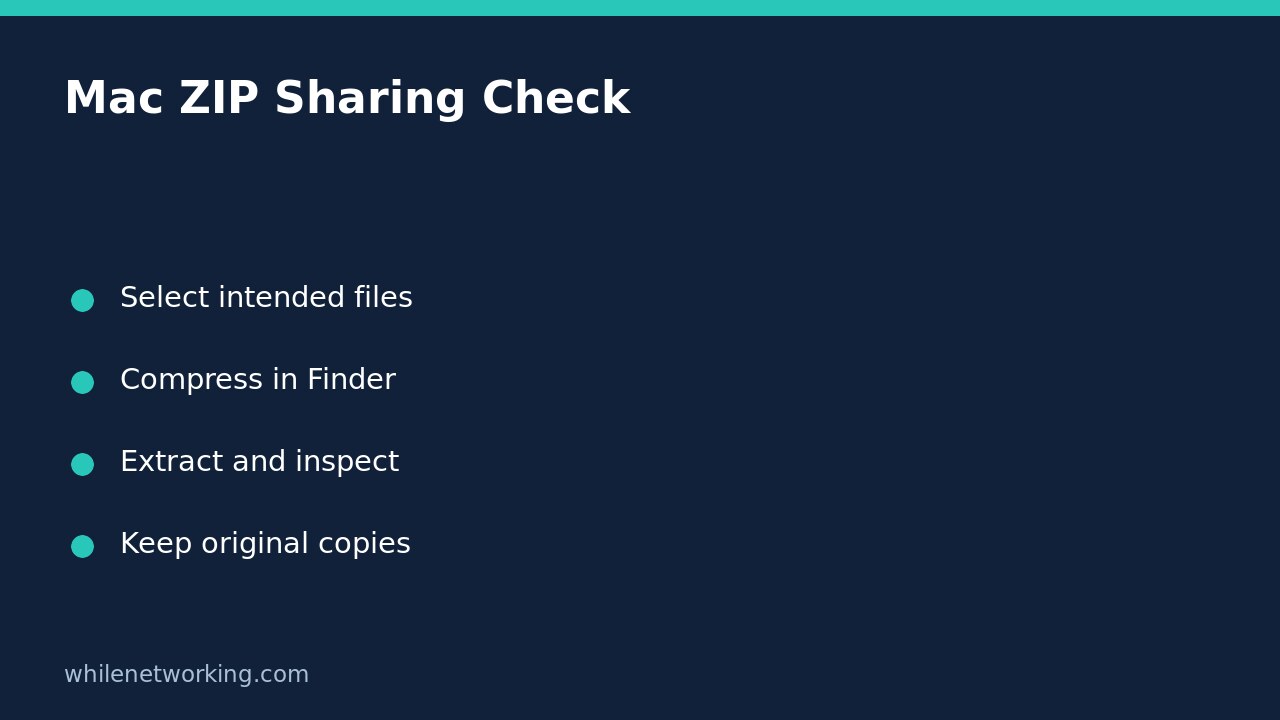

To create a ZIP on a Mac, select the intended files or folder in Finder, Control-click the selection, and choose Compress. Before sending the archive, expand a separate copy and inspect its contents. Creating a ZIP confirms that you made an archive; it does not confirm that you selected the right documents, removed private material, or created a recoverable backup.
Prepare a folder that contains only the intended delivery
Start with a small, clearly named delivery folder. For example, a project handover might contain a final PDF, a spreadsheet and a short readme explaining the versions. Copy the intended items into that folder rather than moving your only originals out of their working location. Open those delivery copies and confirm that they are the versions you intend to share.
Look for unrelated drafts, personal notes and documents containing customer information. A ZIP is a container, not a privacy review. Do not assume that a vague folder name makes sensitive material safe to distribute. If the recipient needs a particular format, settle that requirement before packaging: putting an incompatible document inside a ZIP does not make the document compatible.
Create the archive with Finder
- Locate your delivery folder in Finder.
- Control-click the folder and choose Compress from the shortcut menu.
- Wait for the ZIP file to appear and check its name.
- If you selected several separate items instead of one folder, look for Archive.zip, the name Apple documents for a multiple-item selection.
Apple explains that compressing one item produces an archive named after the original item with a .zip extension. Check the actual result rather than relying solely on that naming pattern, especially when similarly named archives already exist. Rename your delivery archive to something meaningful, such as a project name and revision, without accidentally changing its extension. Our guide to showing filename extensions on Mac explains that distinction.
Compression does not promise a particular size reduction. A folder of already compressed media may not become much smaller. The useful result can be one convenient attachment containing a predictable folder structure, rather than a dramatic storage saving.
Expand a separate copy and inspect the result
Create an empty checking folder and copy the new ZIP into it. Double-click that copy. Apple documents that the expanded item appears in the same folder as the ZIP. Using an empty checking folder helps you distinguish the extracted result from the original working folder.
For the handover example, open the extracted folder and verify that the expected PDF, spreadsheet and readme are present. Open each important document in an appropriate application. Confirm the revision shown inside the document, not just its filename. Check that no unrelated material slipped into the package and that any instructions describe the files actually included.
This is a practical contents check, not a proof that every recipient can open every format or that the archive has not changed during transfer. If the delivery is important, ask the recipient to confirm receipt and usability after downloading it. Retain the original working documents until the handover and your normal retention requirements are satisfied.
If expansion fails, preserve the evidence first
Apple recommends checking that the Mac has enough space for the expanded item. The ZIP’s size is not a safe estimate of the space required after expansion. Avoid deleting your originals to make room for a test. Free space through your normal storage process or use another suitable location with adequate capacity.
If someone else supplied the ZIP, Apple also suggests asking them to compress it again and resend it when the file may be faulty. Keep the failed copy until you have identified which replacement arrived. Do not repeatedly rename extensions or install an unfamiliar utility merely because an attachment will not open.
Quick questions before sending
Can I delete the original folder now? Not merely because a ZIP exists. Keep a separate backup and verify the delivery before considering any cleanup. A ZIP stored on the same device is still exposed to that device’s loss or failure.
Does Compress password-protect the files? Do not treat this Finder workflow as encrypted sharing. Use an approved secure-delivery method when confidentiality is required.
What should I record? Note the archive name, intended recipient, revision and the fact that you inspected an extracted copy. Avoid placing sensitive contents in a public support ticket.
Source: Apple’s Finder ZIP and expansion instructions.
This tutorial is for educational purposes. Test carefully before production use. WhileNetworking is not responsible for misuse, damage, data loss or production issues.