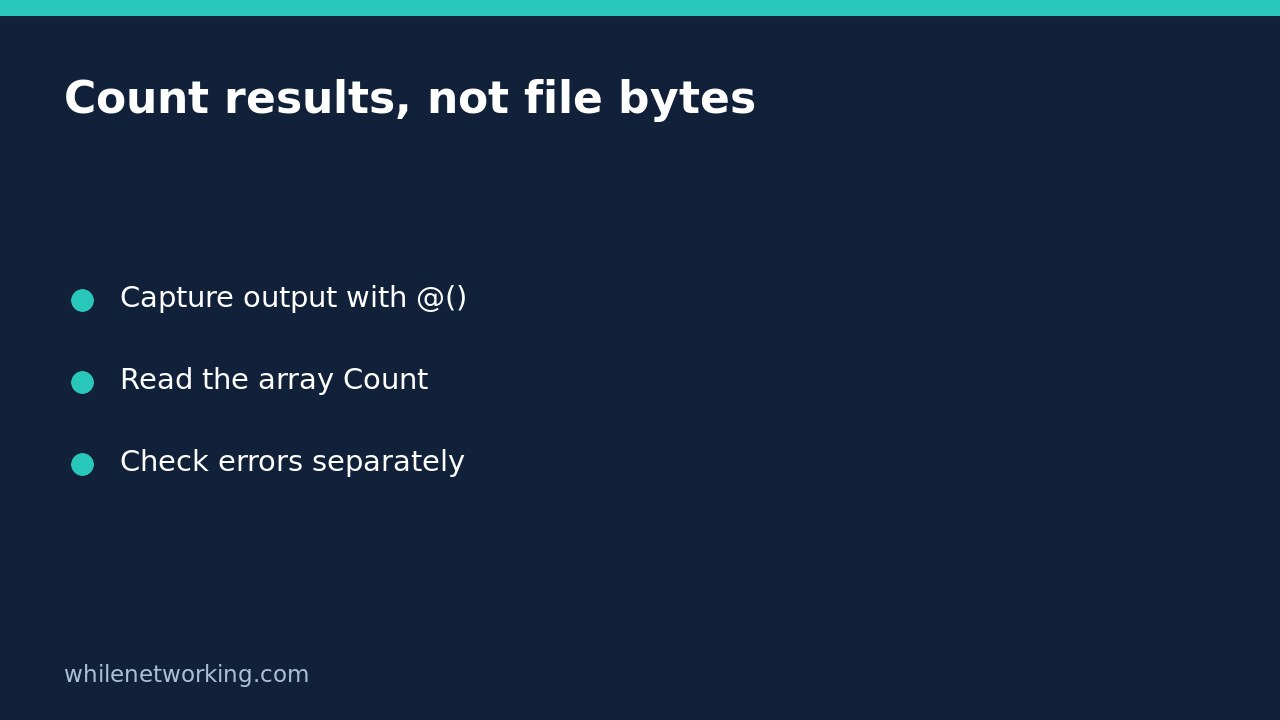

To count results from a PowerShell command consistently, capture its success output inside @(...), then read the resulting array’s Count property. This handles commands that emit zero, one, or several objects without making your later code depend on the shape of a single returned object.
This is particularly useful for Windows file inventories. One file object has a Length property describing its size in bytes; an array has a Length describing its number of elements. Treating those properties as interchangeable can make the same script report completely different quantities when a folder contains exactly one matching file.
Why output shape matters
PowerShell commands send objects through the pipeline. Capturing ordinary pipeline output into a variable does not always give you a conventional multi-element array: a single result can be the result object itself. That object’s properties still have their original meanings. A file’s Length is not a count of files, and a string’s Length is its character count.
Microsoft’s about_Arrays documentation explains that the array subexpression operator places statement output in an array even when there are zero or one objects. Once you intentionally create that array, use Count to express that you want the number of collected elements.
Try zero, one, and several results without touching files
Run the following in a normal PowerShell session. It creates small arrays in memory and prints their counts; it does not change services, accounts, folders, or permissions. The expected counts are zero, one, and three in that order.
$empty = @()
$single = @('report.csv')
$several = @('report.csv', 'notes.txt', 'image.jpg')
$empty.Count
$single.Count
$several.Count
Keep the parentheses and the leading at sign. Parentheses alone group an expression; they do not express the same array-capture requirement. Also keep the distinction between zero output objects and an intentionally stored null element: an array containing a null element still contains an element. This pattern counts collected objects, not business-valid records.
Count CSV files in the current Windows folder
Navigate to a small folder you can read, and confirm it is the intended folder before running this read-only inventory. This example includes ordinary matching files directly in that directory, not all files in subdirectories.
$files = @(Get-ChildItem -LiteralPath . -Filter '*.csv' -File -ErrorAction Stop)
$files.Count
$files | Select-Object Name, Length
The first displayed quantity is the array’s file count. The later table shows each file’s name and byte length. A one-file result should therefore have a count of one even if its Length column is much larger. A zero-byte CSV still counts as a file; neither its presence nor its extension establishes valid CSV content.
The example uses LiteralPath for the directory argument so that wildcard-like characters in a supplied directory name are not treated as a pattern. The Filter argument intentionally remains a filename filter. If a bracketed directory causes confusion, see using LiteralPath for paths with square brackets.
Keep errors separate from an empty result
Do not interpret an access error as proof that no matching files exist. ErrorAction Stop makes this example stop on a cmdlet error instead of silently treating a partially successful enumeration as a complete inventory. If it fails, address the reported path or permission issue and rerun the whole assignment before trusting the variable.
In an interactive session, a variable can still hold data from an earlier successful run when a later assignment fails. Do not continue by reading an old count after an error. For an automated report, only produce the report after the collection step has succeeded, and propagate failures according to the script’s error-handling contract.
The command is not recursive and does not include hidden items by default. Those are scope choices, not a promise that the folder contains no other CSV files. Adding recursion changes both performance and the meaning of the report. Decide on that scope explicitly rather than changing flags merely to obtain a larger count.
Quick checks before using the result
- Confirm the location and whether subfolders or hidden files belong in scope.
- Capture the intended success output with the array subexpression.
- Use Count for object quantity, keeping file Length for bytes.
- Resolve enumeration errors before using the collected data.
- Check zero, one, and multiple matches when testing your script.
Does a count prove a backup is complete? No. Equal file counts do not prove matching names, contents, permissions, or restorability. This technique answers how many objects the successful command returned.
Were these commands run on Windows here? The examples follow the retrieved Microsoft documentation, but no Windows PowerShell execution is claimed. Validate them in your own PowerShell version and a disposable test folder before adapting an operational script.
This tutorial is for educational purposes. Test carefully before production use. The site owner is not responsible for misuse, damage, data loss, or production issues.