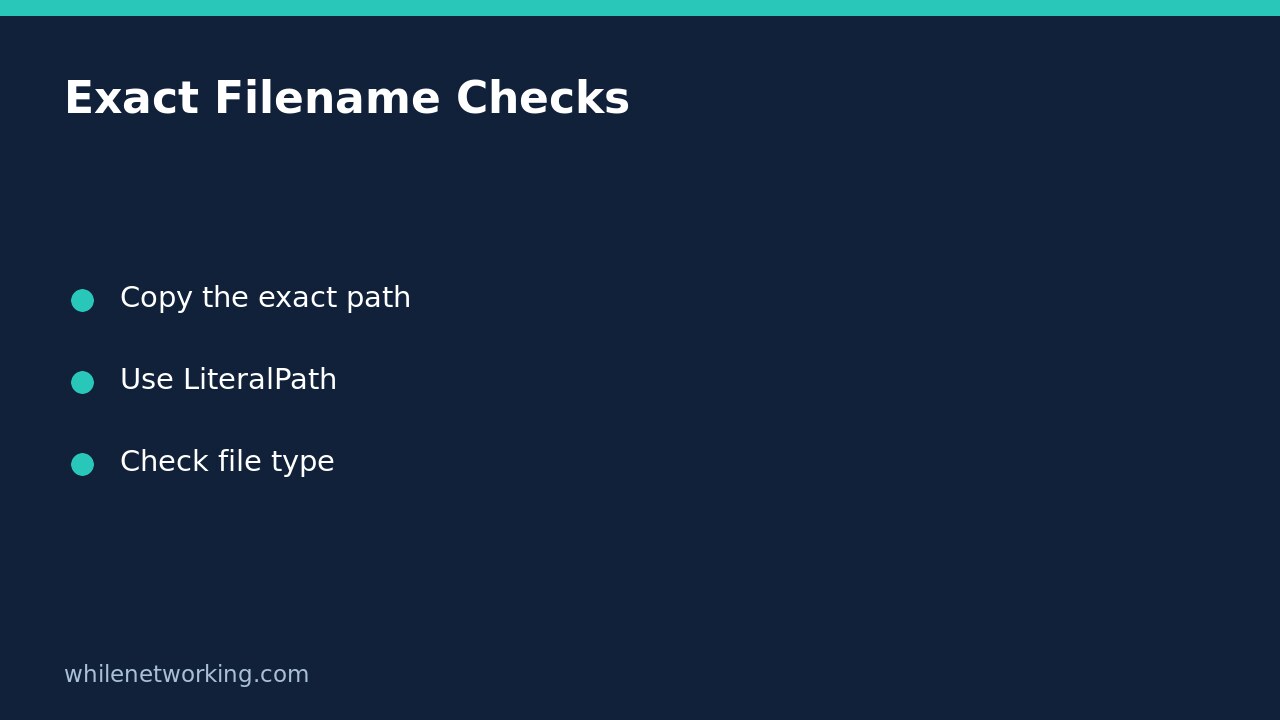

If a file named report[final].csv is visible in File Explorer but Test-Path reports False, check whether PowerShell is interpreting the square brackets as a wildcard pattern. Quoting a path protects spaces and controls string parsing; it does not automatically turn a wildcard-aware Path parameter into an exact filename lookup. Use Test-Path -LiteralPath for the literal filename.
This is a read-only troubleshooting workflow. It does not require administrator access, a file rename, permission changes or a new execution policy. The examples use a fictional file path: replace it with the actual full path copied from your own file.
Separate string quoting from wildcard matching
PowerShell first interprets the string you type, then the receiving cmdlet handles that value according to its parameter. For Test-Path, Microsoft documents that Path accepts wildcards while LiteralPath uses the value exactly as supplied. A filename containing square brackets can therefore be a poor match for a wildcard-aware lookup even though the same string looks correct on screen.
$file = 'C:\Reports\report[final].csv'
Test-Path -Path $file
Test-Path -LiteralPath $file
Compare the two results on your machine rather than assuming they must differ. A wildcard pattern can match another item accidentally, and the named literal file may genuinely be absent. A True result from Path is therefore not proof that it checked the exact bracketed filename. The LiteralPath result answers the narrower existence question.
Single quotes are convenient for a fixed example because variable references and escape sequences are not expanded inside them. Variables such as $file still work when passed as arguments. Do not add backslashes before the square brackets: backslash is not a universal PowerShell escape character.
Confirm whether the item is a file or a folder
Existence alone may not satisfy a script. A process expecting a CSV file should not accept a directory that happens to share its intended name. Add PathType Leaf for a file-system file and Container for a directory. Keep these as existence/type checks, rather than combining them with IsValid.
Test-Path -LiteralPath $file -PathType Leaf
Test-Path -LiteralPath $file -PathType Container
In this file-system example, a file should satisfy Leaf, while a folder should satisfy Container. Neither result proves that a CSV has valid headers, that its contents are safe, or that you can read it successfully. Later operations can still fail because of permissions, locks, a disconnected share or a file that changes between the check and use.
Use an explicit literal parameter in your script
For an input that is meant to identify one exact file, put that intention in the command rather than relying on a workaround in the name. A minimal guard can stop processing when the file is absent or the lookup raises an error:
$file = 'C:\Reports\report[final].csv'
try {
    $exists = Test-Path -LiteralPath $file -PathType Leaf -ErrorAction Stop
} catch {
    throw "Could not check the input file: $($_.Exception.Message)"
}
if (-not $exists) {
    throw 'The exact input file was not found.'
}
This guard does not open or modify the file. The eventual reader must still handle its own errors, and you should check that cmdlet’s documented literal-path support rather than assuming every command accepts the same parameters. Test-Path accepts pipeline input for Path, not LiteralPath, so an explicit named argument is clearer for this exact-name check.
If LiteralPath still returns False
- Copy the full path again and check for an extra extension, trailing spaces in pasted text or an unintended enclosing quote stored inside the variable.
- Check whether you are using an absolute Windows path rather than a relative path that depends on the terminal’s current directory.
- Confirm that a network location or mapped drive is available in this session. Do not elevate just to make a failed lookup disappear.
- Inspect any reported access error separately. Do not suppress all errors and label every failure as a missing file.
If the location is assembled from an environment variable that was recently changed, compare the variable in the actual terminal running the script. The related tutorial why an environment variable is missing in an open terminal explains why another window can have a different value.
FAQ and final checks
Does IsValid prove the file exists? No. Microsoft distinguishes path-syntax validation from checking existing path elements and documents version-related limitations. For this task, use LiteralPath with the appropriate PathType and inspect errors.
Should I rename the file to remove brackets? Not as the first fix. Other scripts or people may depend on its name. An exact lookup avoids that unnecessary change. Does this work for registry values? Do not generalise the file example: Microsoft’s documentation warns that Test-Path does not correctly test individual registry entries even though it can test registry keys.
Source: Microsoft Learn Test-Path reference, including LiteralPath, PathType, pipeline input and provider limitations. The cited view describes PowerShell 7.5; avoid assuming every version-specific option is available in Windows PowerShell 5.1.
Safety: These instructions are for educational purposes. Test carefully before production use. The site owner is not responsible for misuse, damage, data loss or production issues.