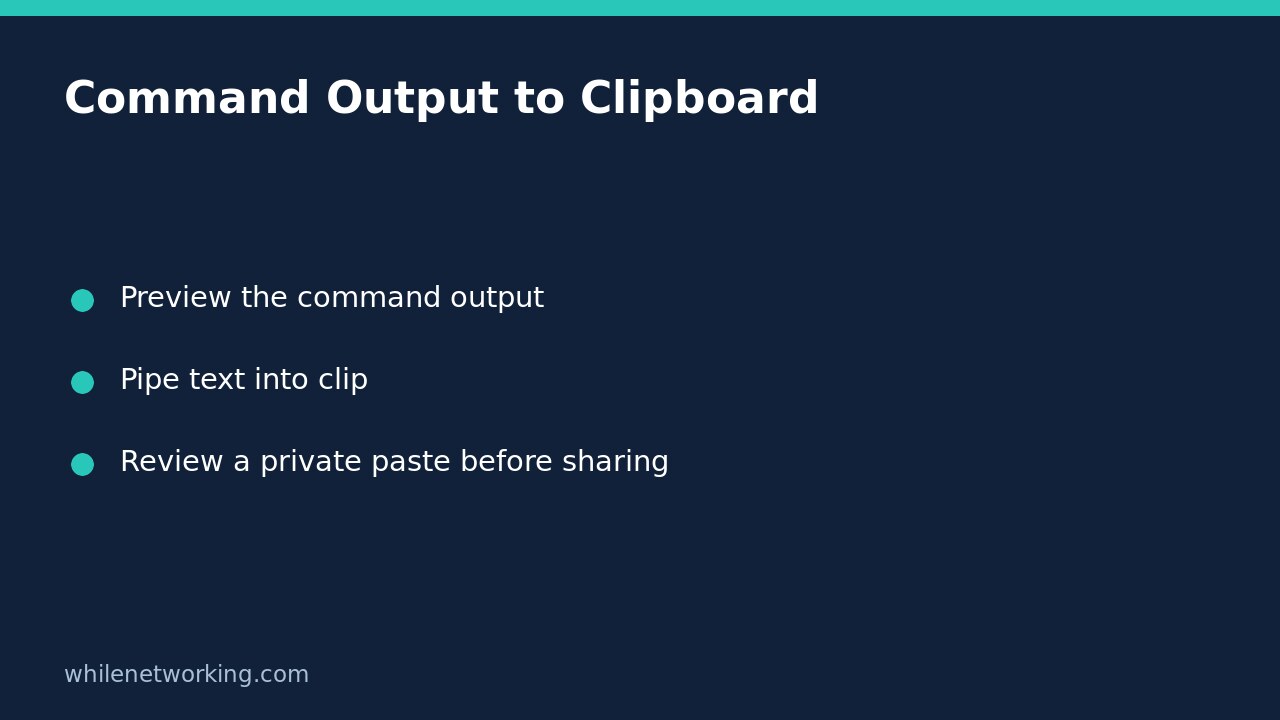

In Windows Command Prompt, append | clip to a command to send its output to the Windows clipboard. You can then paste the text into a document or support message. The important extra step is to paste privately and review it first: copying diagnostic output is not the same as checking that it is complete, safe to disclose or useful to the recipient.
Start with harmless text in Command Prompt
Open Command Prompt rather than assuming every terminal tab uses the same shell. The examples below use its pipe and input-redirection syntax. In particular, do not paste the file-input example unchanged into PowerShell and expect identical parsing.
Before copying anything important, try a line of deliberately nonsensitive text:
echo Clipboard practice | clipOpen a private text document and paste with Ctrl+V. You should inspect the actual pasted result rather than assuming a quiet command means the intended text arrived. This transfers text, not a screenshot of the terminal window. The clipboard’s current contents can be replaced, so save anything you still need before trying it.
This simple practice does not need administrator access. Do not elevate the terminal just to copy output; doing so does not make the text more accurate or safer to share.
Preview output before sending it to the clipboard
A practical example is copying a directory listing from a folder whose names you are allowed to disclose. First open the intended folder in Command Prompt and inspect the listing normally:
dirCheck the folder context and visible filenames. Then run:
dir | clipThe pipe sends the command’s ordinary output onward instead of displaying that output in the usual way. This can make the terminal appear surprisingly quiet. Paste into your private document to see what was actually copied. Filenames, folder paths, volume labels and other contextual details may be sensitive even when the command does not read the files themselves.
Do not add error-stream merging merely because a support message looks incomplete. An error message and a successful result are different evidence. If the source command fails, investigate and describe that failure; the fact that text can be pasted does not establish that the diagnostic command succeeded.
Copy a text file’s contents, not the file itself
Microsoft also documents feeding a file into clip with input redirection. For a harmless text file named readme.txt in the current directory:
clip < readme.txtIf the filename contains spaces, quote it:
clip < "support notes.txt"The file must already exist in the current directory for these examples. This copies its textual contents into the clipboard; it does not attach the file, preserve its permissions or create a backup. Do not use the technique on executables, archives or other binary files and expect a meaningful document.
After pasting, inspect punctuation, accented characters and line breaks, especially when the file was produced by another application. If the text looks wrong, stop and use an approved text editor or file-sharing method instead of sending a damaged transcript. Keep the original file until the recipient has what they need.
Turn a private paste into a useful support message
Review the pasted text for account names, internal paths, device identifiers and unrelated customer details. Redact only what is necessary, and mark omissions clearly so support does not mistake an edited transcript for complete output. Never include passwords, tokens or recovery codes.
Place a short explanation above the extract: which command you ran, what problem you were investigating and when you collected it. For example, when investigating unexpected wake-ups, collect the appropriate evidence using the wake-timers versus last-wake guide, then review the resulting text before sharing. Copying it neatly does not settle the underlying sleep diagnosis.
A clipboard is a transfer mechanism, not durable storage. Save a reviewed local note if you need a record. Consider the device’s clipboard-history or synchronization settings before placing sensitive information there; this tutorial does not enable, disable or audit those features.
Quick questions and final checks
Why did the command show no listing? With a pipe to clip, the ordinary output is being redirected. Paste privately and verify it rather than repeatedly running the command.
Does this send the text to support automatically? No. You still choose where to paste and whether to submit the message. Confirm the recipient before sending.
- Use the intended shell and folder.
- Preserve clipboard contents you still need.
- Check the source command’s actual result.
- Review a private paste for accuracy and sensitive details.
- Save an appropriate record separately if required.
Source: Microsoft Learn’s clip reference documents the pipe and file-input forms. The commands here were reviewed against that documentation; they were not executed on a Windows desktop in this environment.
Safety: This tutorial is for educational purposes. Test carefully before production use. The site owner is not responsible for misuse, damage, data loss or production issues. Restoring a previous clipboard item is not guaranteed, so preserve needed text before replacing it.