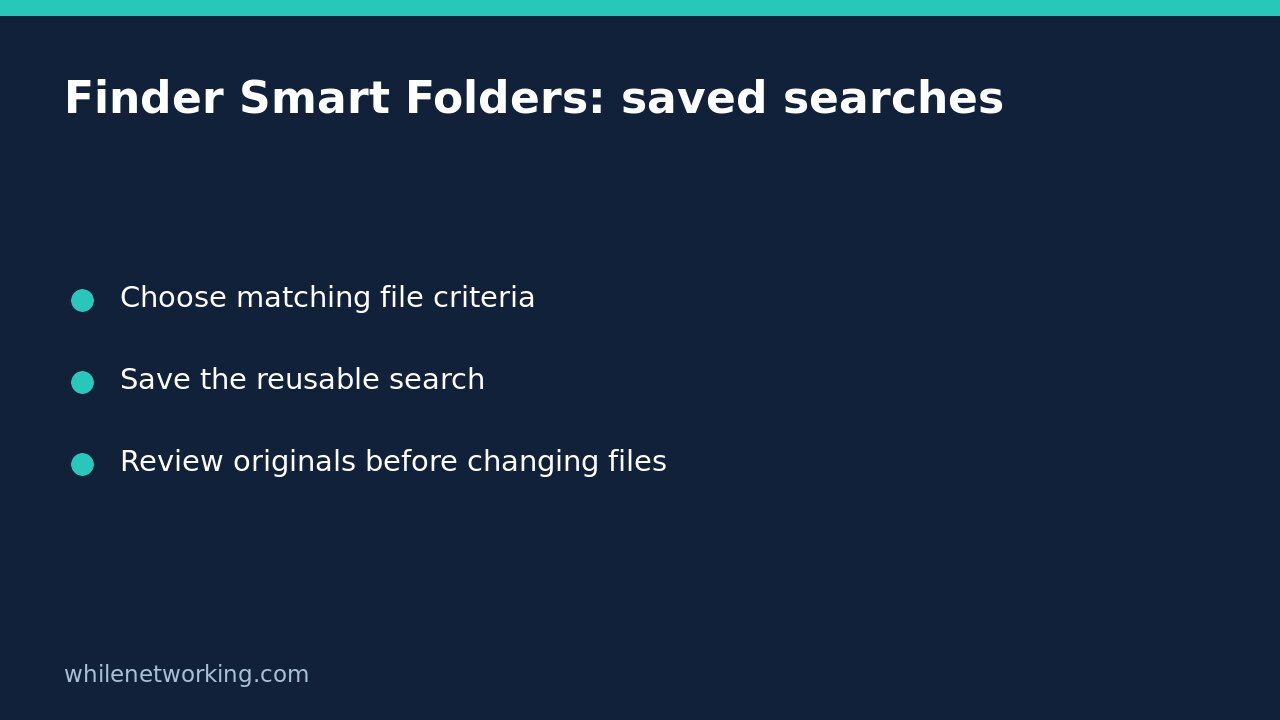

A Finder Smart Folder saves a search so you can reopen its changing results later. It does not gather independent copies of the matching files. Use one for a recurring review task, such as finding project documents, rather than rebuilding the same filters every time.
The important decision is what should qualify for the list. A helpful Smart Folder has a clear purpose and criteria you understand. If you need a fixed handover bundle or a recoverable backup, a saved search is not a substitute.
Choose a repeatable task before saving anything
Imagine that you regularly review documents with the word invoice in their filenames. You want the current matching files, including newly created ones, without moving them out of their existing folders. A Smart Folder is useful because the list updates as files are added, changed or deleted.
Decide whether the filename, document contents, file kind or a date matters. Those are different questions. A document that mentions invoice in its body is not necessarily a file whose name contains invoice. Start with one simple rule and add only the restrictions your review actually requires.
Also inspect the search location shown in Finder. A convincing-looking result list can still be incomplete if the search is aimed at the wrong place. Avoid assuming that a saved query means every storage location or service has been searched.
Create and save the Smart Folder
- Activate Finder, then choose File > New Smart Folder.
- Enter a search characteristic or add a criteria row using the plus button below the search field. Resize the window if controls are hard to see.
- For the example review, use a Name criterion with the appropriate contains option and the word invoice. Add a Kind criterion for Document if that restriction fits your files.
- Examine the matching list before saving. Remove an unnecessary broad text query if it accidentally adds a separate condition.
- Click Save, choose a descriptive name and location, and decide whether to keep Add To Sidebar selected.
- Save, then reopen the saved search to confirm it still represents the intended task.
Menu wording and control placement can differ between macOS versions. Apple’s Smart Folder instructions describe the creation and editing workflow; select the guide version appropriate to your Mac where available.
Check the rules rather than trusting the folder name
A name such as Invoice review is only a label. It does not explain whether the saved search matches filenames, text inside documents, or a particular date. Reopen the Smart Folder, use the window’s action or More menu, and choose Show Search Criteria to inspect the rules.
Apple’s Finder search guide explains that ordinary added criteria must all match. Adding a date rule to a filename rule narrows the results; it does not create a second independent list. If an expected document disappears, remove the newest restriction temporarily and check which condition excluded it.
For a small practice check, use harmless sample documents in a test location. Confirm that a matching filename appears, then rename that sample so it no longer matches and observe the list again. Search updates need not be instantaneous. This is a test you can perform, not a claim that it was executed on your Mac.
Keep saved results separate from copies and backups
A Smart Folder is a live view of matching items, not a frozen inventory. Tomorrow’s list can differ even though you did not edit the saved search. Deleting or changing an original can alter the results, which is why saving the search does not protect those files.
Before renaming, moving or deleting a result, verify the original’s location. If you need help recording that location, see copying a folder path using the Finder path bar. Identifying the original is especially important when similarly named documents live in different project folders.
For a fixed review package, deliberately copy the chosen originals into an appropriate destination and verify that package separately. For recovery, use a proper backup workflow. Neither a sidebar entry nor a saved search establishes that file contents have been preserved.
Quick questions before relying on the search
- Will new matching files appear? Apple describes the list as updating automatically when matching files are added or changed.
- Does an empty list prove the files are gone? No. Recheck the location, filename assumptions and combined criteria first.
- Does Add To Sidebar make another document copy? No. It provides quick access to the saved search.
- Can the rules be reviewed later? Yes. Open the Smart Folder and show its search criteria.
Safety: This tutorial is for educational purposes. Practise with nonessential files and test carefully before using a workflow in production. The site owner is not responsible for misuse, damage, data loss, or production issues.