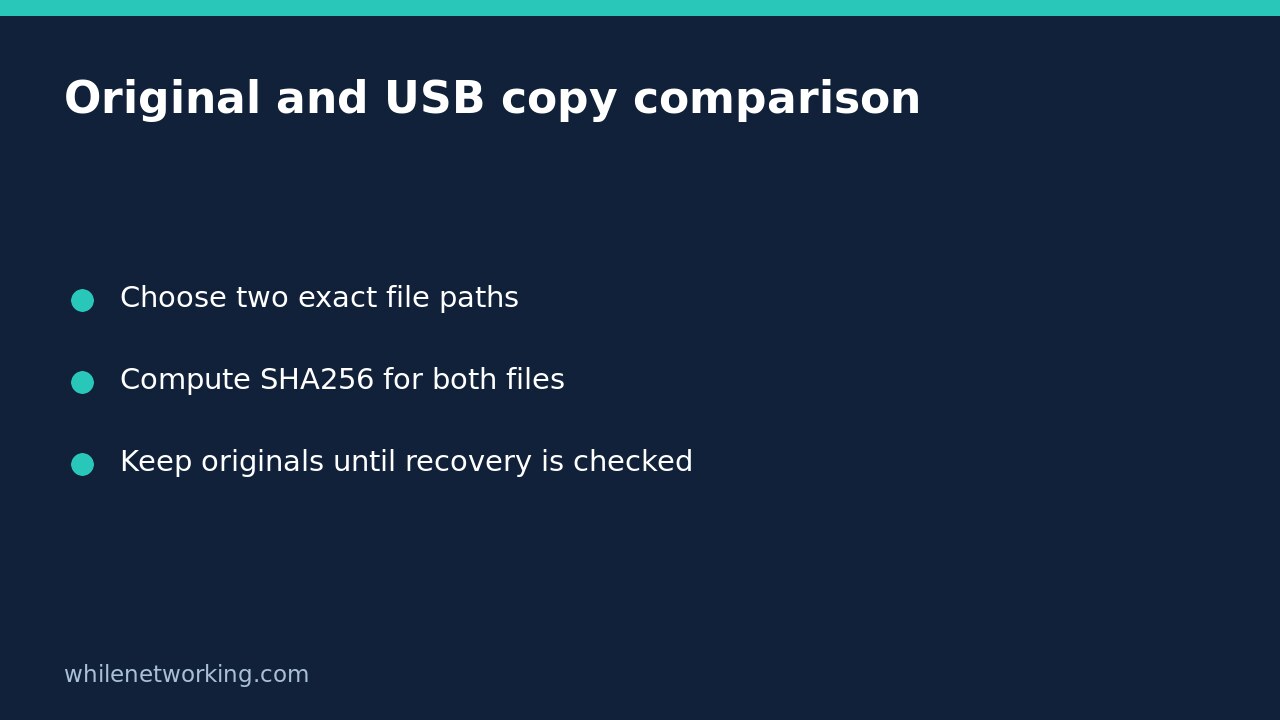

To check whether one copied file has the same contents as its original, calculate a SHA256 hash for each file and compare the results. This is more informative than comparing filenames or Explorer’s displayed sizes. It is also read-only: you do not need to open, overwrite or delete either file.
This workflow answers a narrow question: do these two readable files currently have matching content hashes? It does not certify an entire USB drive, prove a backup is recoverable, or make deletion of the original automatically safe.
Choose the exact original and destination file
Finish the copy operation first. Close any application that may still be saving the original, and avoid editing either file during the comparison. A changing database, mail archive or document can invalidate a simple before-and-after check.
In File Explorer, identify the full original path and the full path on the USB drive. Confirm the drive letter: removable drives can receive a different letter after reconnection. Two files called Report.pdf can live in different folders, so inspect the location as well as the filename.
The example below uses an illustrative local document and an illustrative USB destination. Replace both complete paths with your real paths. The command does not create these files, and the paths are not evidence that a copy already exists.
Read both SHA256 hashes without changing either file
Open PowerShell and run these as two separate commands:
Get-FileHash -LiteralPath 'C:/Users/Alex/Documents/Report.pdf' -Algorithm SHA256 | Format-List Algorithm, Hash, PathGet-FileHash -LiteralPath 'E:/Archive/Report.pdf' -Algorithm SHA256 | Format-List Algorithm, Hash, PathMicrosoft documents that Get-FileHash computes a file’s hash and returns the algorithm, hash and path. SHA256 is also its default, but spelling it out makes this comparison easier to audit. LiteralPath prevents special characters such as square brackets from being interpreted as filename wildcards.
Check the Path line of each result before comparing Hash. Accidentally hashing the original twice can produce a reassuring match without checking the USB copy at all. Compare the full hash strings, not just the first or last characters. Both Algorithm lines must identify the same algorithm.
Interpret a match, a mismatch or an error correctly
Both hashes match: this is strong practical evidence that the selected files have the same byte content at the time they were read. Renaming a file does not itself change its content hash. The result does not compare folder structure, permissions, creation dates, or the other files on the drive.
The hashes differ: keep the original. Confirm you selected the intended versions, allow ongoing copies to finish, and check whether the source was edited. A different hash identifies different contents; by itself it does not explain whether the reason was a newer revision, incomplete copying, corruption or some other change.
A command reports an error: that is not a successful comparison. A missing path, access denial or read failure must be resolved before drawing a conclusion. Do not remove security controls or take ownership of shared files merely to complete this check. On managed computers, preserve the error and ask support.
Use the result as one part of a safer copy check
- Keep the original and the copy unchanged while investigating mismatches.
- Check each important file separately; one matching PDF says nothing about adjacent spreadsheets.
- Confirm required documents are usable with an appropriate, safe recovery test. A hash match can faithfully preserve an already-damaged original.
- Check that another independent backup exists before considering removal of the only working source.
- Use your normal safe-removal procedure when finished with removable storage.
For a large archive, an approved backup product with logged verification and restore tests is usually more suitable than manually comparing selected files. Do not extend this two-file example into an automatic deletion script.
Common questions about copied-file verification
Is matching size enough? No. Different contents can have the same length. A content hash checks something different from the displayed size.
Does a match prove the file is trustworthy? No. Here you are comparing two local copies, not establishing who created the file or whether it is safe to execute. For a separate task involving vendor downloads, see checking a downloaded file against a publisher’s SHA256 value.
Were these Windows commands executed here? No Windows execution is claimed. They follow the documented cmdlet syntax; you must check actual paths and results on your Windows machine.
Source: Microsoft’s Get-FileHash documentation, including its explanation of content hashes and LiteralPath.
This tutorial is for educational purposes. Test carefully before using steps in production. The site owner is not responsible for misuse, damage, data loss or production issues.