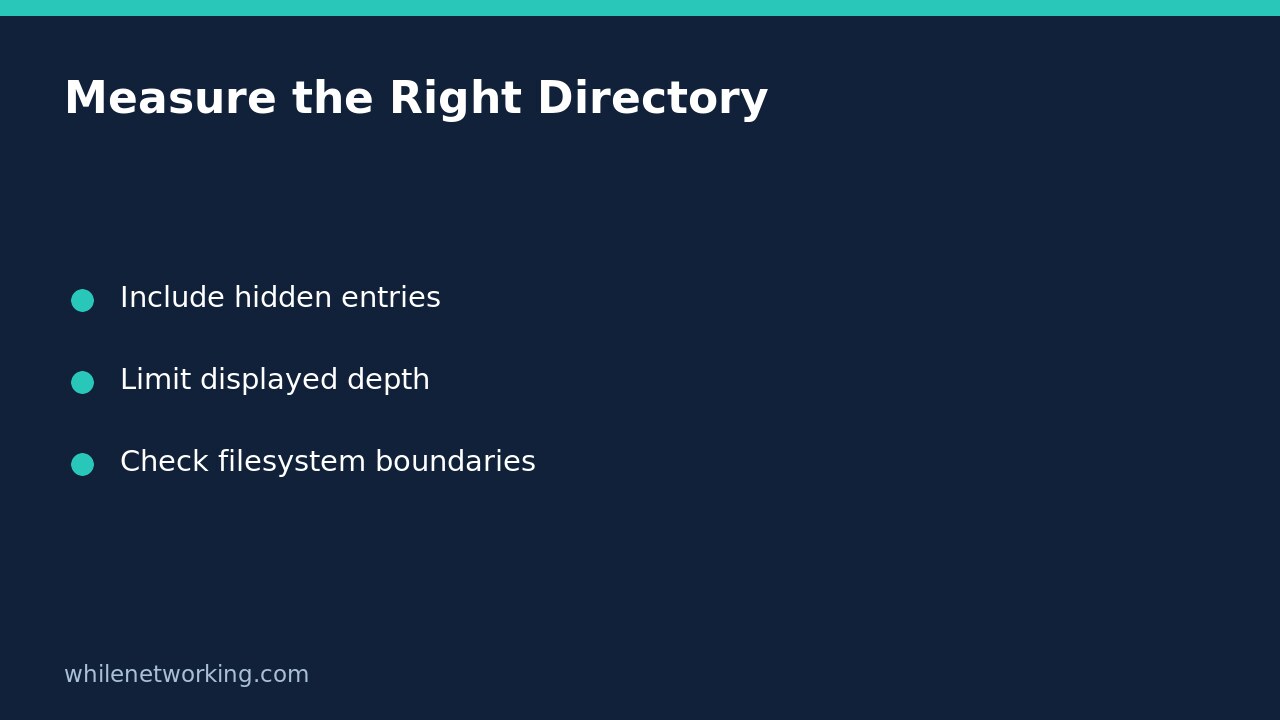

To measure a Linux directory including its hidden folders, give du the directory itself rather than a shell wildcard. On systems with GNU coreutils, du -h -x --max-depth=1 -- /path/to/folder provides a useful first breakdown while skipping directories on different filesystems. This is an inspection step, not a command to delete whatever looks largest.
Why a wildcard can miss the directory you need
A command such as du -sh * depends on the shell expanding the asterisk before du starts. With common default shell settings, names beginning with a dot are not included. A large hidden cache or application directory can therefore be absent from that particular list even though it occupies space.
Passing the parent directory avoids relying on wildcard expansion. Du walks that directory recursively, including dot-prefixed entries it can access. You do not need to enable a shell option or build a complicated combination of visible and hidden patterns. The double hyphen marks the end of command options; the quoted pathname in the examples also preserves spaces.
Start with one directory and one filesystem
Replace the example pathname with an existing directory you own. These commands use GNU du options, which may differ on non-GNU systems:
du -shx -- "/path/to/folder"
du -h -x --max-depth=1 -- "/path/to/folder"
The first command gives one total. The second displays the starting directory and directory totals one level below it. Those child totals already include their descendants. The depth option limits displayed results; it does not mean du only examines one level of files. A large tree can still take time and cause storage activity.
The -h option selects readable size units. The -x option skips directories on different filesystems. That is helpful when a project directory contains a mounted backup disk or network filesystem that you do not want included in the local measurement. It is a filesystem boundary rule, not a promise to exclude every possible mount arrangement, including same-filesystem bind mounts.
Read the total without counting it twice
Suppose your project contains a visible documents folder, a hidden build cache, and loose files directly inside the project. The depth-one report can show the two directory totals plus the project total. Do not add the project total to the child totals: the project line already includes the children.
Loose files contribute to the parent total without appearing as separate entries in this directory-oriented view. If that difference matters, request files as well:
du -a -h -x --max-depth=1 -- "/path/to/folder"This can produce more output. Use it only after narrowing the location. To investigate an unusually large child directory, rerun the depth-one command with that child as the starting path. Avoid turning a first inspection into a whole-server scan unless that scope is genuinely necessary.
Resolve incomplete or surprising measurements
- Permission errors: an unreadable subtree makes the result incomplete. Keep the error visible and ask the relevant administrator for an approved measurement instead of immediately escalating privileges.
- Numbers change between runs: active applications may be writing or removing files during the walk. Record the path, options and observation time before comparing results.
- One very large file seems cheap: du normally reports allocated usage, not simply logical length. See the related explanation of sparse files and apparent file size before drawing a conclusion.
- Filesystem free space differs: a directory walk and filesystem-wide free-space accounting answer different questions. This report alone does not diagnose every discrepancy.
Checklist before any cleanup
Confirm the exact starting path, whether hidden entries were included, whether another filesystem was intentionally excluded, and whether access errors occurred. Identify the application that owns the largest directory. For application-managed caches or databases, use that application’s supported retention or cleanup process rather than removing internal files blindly.
Does this change files? The shown du commands inspect usage rather than intentionally modifying file contents. They can still impose I/O load. Does the biggest directory mean safe to delete? No: size is evidence for investigation, not permission to remove data.
Reference: the GNU coreutils du manual documents depth limits, filesystem boundaries, file listing and allocated versus apparent sizes.
This tutorial is for educational purposes. Test carefully before using commands in production. The site owner is not responsible for misuse, damage, data loss or production issues.