
If a Linux service cannot see a directory that appears normally in your terminal, compare the service process’s mount information with your shell’s view. A matching pathname does not establish that both processes see the same mounted storage. Start with read-only evidence rather than changing permissions, disabling isolation, or forcing a remount.
This workflow is useful when an application reports a missing directory, an unexpected empty folder, or a read-only destination even though your interactive checks seem normal. It identifies a mount-view difference; it does not automatically establish why that difference exists.
Identify the process that actually performs the operation
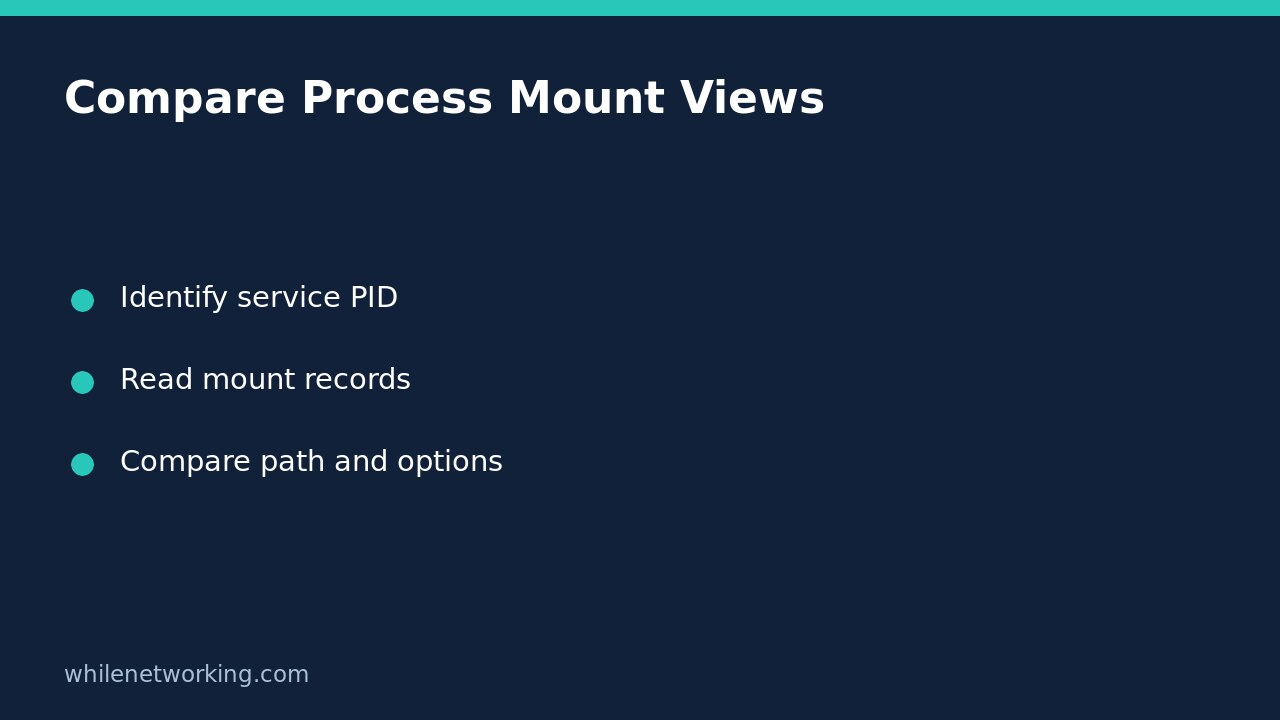
Record the exact failing pathname, error text, and time. Identify the application’s current process ID using your service manager or monitoring tools. For a systemd service, this inspection command reports the main PID without restarting it:
systemctl show example.service --property=MainPID --valueReplace the example unit name. A result of zero is not a running process to inspect. Some applications delegate file operations to child workers, so confirm which process produces the error rather than assuming the supervisor does the work. Recheck the PID if the service restarts during the investigation.
The kernel documentation explains that numbered directories under /proc represent processes and that self refers to the process reading that filesystem. Access to another process’s information may be restricted. An access error is not proof that its mounts are wrong; ask an authorised administrator to collect the evidence instead of weakening host protections.
Read both mount tables without entering the service
Use these commands to display mount records. Replace 1234 with the verified application PID. Neither command remounts storage or enters another namespace.
less /proc/self/mountinfo
less /proc/1234/mountinfo
In the first command, self describes the reading process, normally inheriting your terminal’s mount view. The second file describes mounts in the target process’s mount namespace. In less, search for the relevant directory with the slash search command and leave with q.
Do not look only for an exact match to the complete filename. Find the mount point containing the path, including any more-specific nested mounts. For example, a file below /srv/reports could be supplied by a mount at /srv or by a separate mount at /srv/reports. Paths in mountinfo may contain escaped characters, so a directory containing spaces needs careful interpretation.
Compare the meaningful fields, not just the device name
The Linux manual separates mount options from filesystem-wide superblock options. The kernel reference documents the same structure. For each relevant record, compare:
- Mount point: where storage appears relative to that process’s root directory.
- Root field: which directory within the underlying filesystem forms this mount’s root, important for bind mounts.
- Per-mount options: including whether that mount is read-only or read-write.
- Filesystem type and source: located after the single hyphen separator.
- Superblock options: the final options field, distinct from per-mount settings.
Optional propagation fields can occur before the separator. Do not assume the filesystem type always sits at a fixed position counted from the beginning. Also avoid treating mount IDs alone as a universal cross-process identity test; compare the substantive fields and path context.
Turn a difference into a focused handoff
Consider a hypothetical application writing /srv/reports/export.csv. Your terminal’s record describes the expected data mount, but the service’s relevant record describes a different root or read-only mount. That is evidence to review the service’s mount or isolation configuration, not a reason to make the directory world-writable. Preserve the two records, PID, timestamp, and error message for the owner responsible for that configuration.
If the records appear equivalent, keep investigating ordinary permissions, the application’s actual path, filesystem capacity, and application logs. Mountinfo does not establish that a user can write a file. For a different failure mode, see checking inode exhaustion when free disk space remains.
Quick questions before changing anything
Does a different view prove corruption? No. Process isolation and bind mounts can be intentional. Confirm the expected architecture first.
Should I remount immediately? No. A read-only view can be deliberate or require deeper storage investigation. Unplanned changes may remove a protection or affect other workloads.
What needs rollback? These inspection commands change no mount settings. If a later configuration change is approved, back up the original configuration and plan a controlled rollback separately.
Sources: Linux kernel /proc documentation and the mountinfo manual page.
This tutorial is for educational purposes. Test procedures carefully before production use. The site owner is not responsible for misuse, damage, data loss, or production issues.