
If a Python script reads its configuration when launched manually but fails under a scheduler, check the path anchor before changing permissions. A relative filename such as settings.json is interpreted from the process working directory, not automatically from the directory containing the script. For an ordinary script whose configuration belongs beside its source file, build the path from Path(__file__).resolve().parent.
This tutorial covers a normal saved Python script on a filesystem. Notebook cells, interactive consoles, packaged applications and installed package resources can need different approaches. The goal is to make one deliberate path choice, not to force every application to store configuration beside its code.
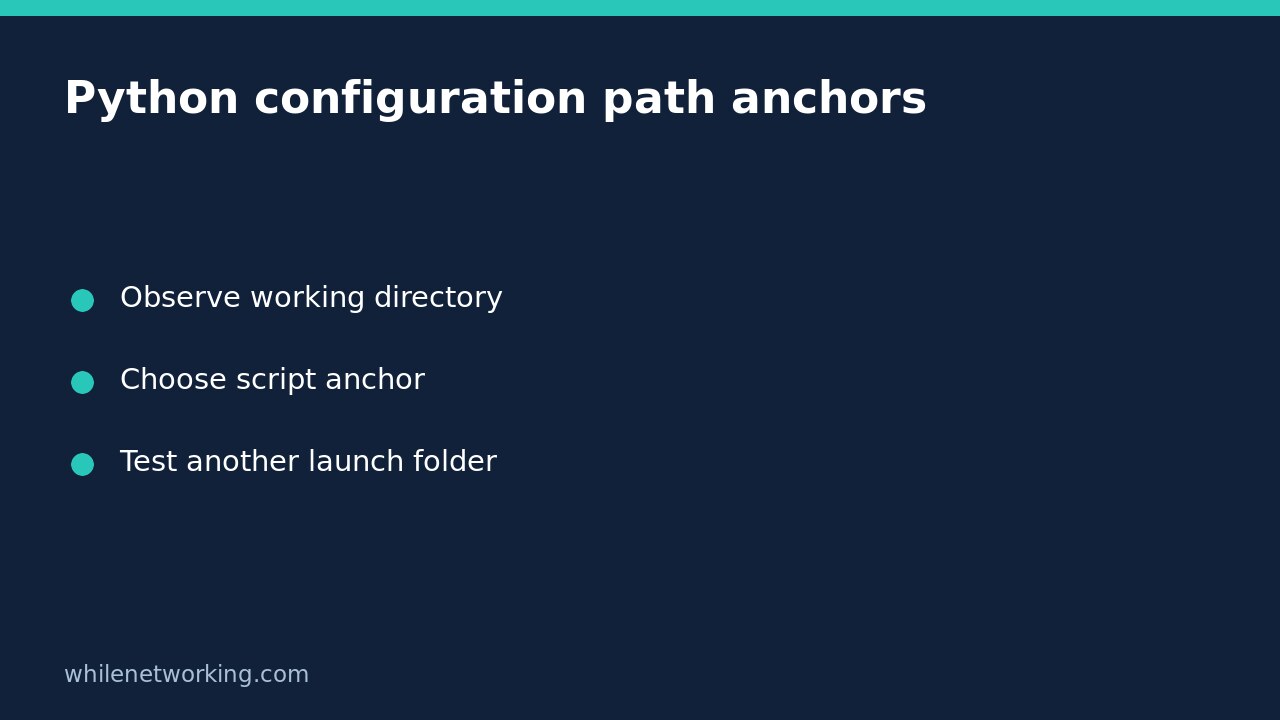
Observe the two directories before making changes
Imagine a folder containing report.py and settings.json. Running the script while your terminal is in that folder can conceal an accidental dependency on the launch location. A scheduler or IDE can choose a different working directory while executing exactly the same script file.
Temporarily add these diagnostic lines to the saved script. They print paths only; they do not read configuration values or change directories.
from pathlib import Path

print('Working directory:', Path.cwd())
print('Script directory:', Path(__file__).resolve().parent)
print('Relative candidate:', Path('settings.json').resolve())
Compare the output from your manual launch and your scheduler log. If the relative candidate points to a different folder, that is a concrete explanation to investigate. If the paths match, the failure may instead involve the filename, access permissions, file contents or the account running the job. Do not publish logs containing private paths without reviewing them.
Read the file from a deliberate script-relative location
For a configuration file deployed beside this ordinary script, use the following complete replacement for the diagnostic example. Create a small test settings.json containing {} alongside it before trying the example.
import json
from pathlib import Path

script_dir = Path(__file__).resolve().parent
config_path = script_dir / 'settings.json'

try:
    with config_path.open(encoding='utf-8') as stream:
        settings = json.load(stream)
except FileNotFoundError:
    raise SystemExit(f'Configuration file not found: {config_path}')

if not isinstance(settings, dict):
    raise SystemExit('Configuration must be a JSON object')

print('Loaded configuration from:', config_path)
The path join constructs the intended filename. Opening it reads the existing file without creating a replacement. Only a missing file receives the custom message: invalid JSON, decoding failures and permission errors remain distinct exceptions rather than being misleadingly described as a missing configuration.
The official pathlib documentation explains that Path.cwd() represents the current directory, resolve() makes a path absolute while resolving symbolic links, and parent returns a path’s logical parent. Resolution alone does not prove a file exists or is readable. The actual open operation still matters.
Choose whether following a symbolic link is correct
Using resolve() means a script reached through a symbolic link is anchored to its resolved target location. That is useful when the configuration is deployed with the real script, but it may be wrong if your deployment intentionally places separate configuration beside a launcher link. Document the intended layout before adopting this pattern.
Similarly, installed application code may live in a read-only location. A system service might need an explicitly configured absolute settings path rather than a file beside the source. Avoid silently falling back to a different settings file when the intended one is missing: the program could run successfully with the wrong environment’s values.
Test launches without changing the program globally
Use a disposable project folder and launch the saved script with an absolute script filename from two different working directories. In both cases, the corrected version should print the same configuration path. Then temporarily rename the disposable configuration file, confirm that the missing-file message names the expected location, and restore its name.
Changing the entire process working directory can appear to solve the problem, but it also changes how unrelated relative paths behave. Input files, log destinations and subprocesses may then use a new anchor. Prefer fixing the specific configuration path unless changing the working directory is an intentional application-wide contract.
Quick questions and deployment checklist
Does this validate the configuration? Only minimally. It checks that the parsed top-level value is an object. Add required-key and value checks for your application. For stricter parsing, see rejecting duplicate JSON keys before loading configuration.
Does this work in a notebook? Do not assume so: notebooks and interactive sessions do not provide the same ordinary script-file context. Choose an explicit project or configuration path there.
- Record the observed working directory and intended file location.
- Decide whether script-relative, user-relative or explicitly supplied configuration fits the deployment.
- Test from a second launch folder using disposable settings.
- Keep secrets out of diagnostic output and source control.
This tutorial is for educational use. Test carefully before production deployment. The site owner is not responsible for misuse, damage, data loss or production issues.