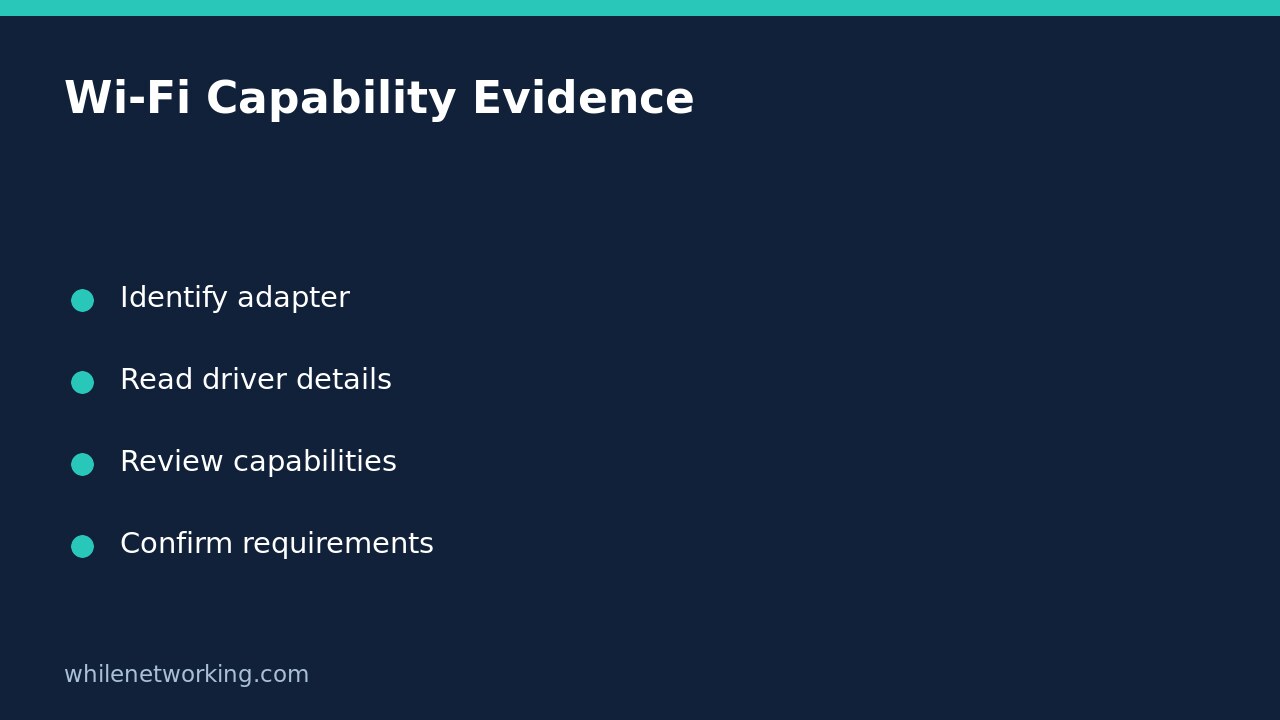

Before buying a replacement Wi-Fi adapter because a feature appears unavailable, inspect what Windows reports about the installed wireless driver and device capabilities. Two read-only commands, netsh wlan show drivers and netsh wlan show wirelesscapabilities, provide different parts of that inventory. They do not enable a feature, connect to a network or prove that a supported feature works end to end.
This workflow is for a specific question: does the currently installed wireless stack report the capability your task needs? It is not an internet speed test or a generic connection repair. Keep the requirement, adapter identity and actual output together so support staff can make a reasoned next decision.
Identify the driver Windows is actually using
On the Windows computer, open Command Prompt and run the following display command. Begin with a normal session; if an access restriction appears, preserve the response and follow your organisation’s access procedure rather than disabling security controls.
netsh wlan show driversMicrosoft describes this operation as listing properties and details of installed wireless LAN drivers. Read each interface section separately if the computer has more than one wireless adapter. A USB adapter and a built-in adapter may use different drivers and support different functions.
Where present, record the interface name, driver description, provider, version and date. Keep those labels separate: a driver provider need not be the same organisation as the hardware vendor. A date alone does not establish that the driver is the newest appropriate release or that an update is needed. Compare the exact computer or adapter model with its manufacturer’s supported update information before making changes.
Also inspect any radio types and authentication/cipher combinations shown. Treat them as reported support for the installed configuration, not a record of which mode the current connection negotiated. A list containing a legacy security option is not a recommendation to use it.
Read capability results without turning them into promises
Run the second command to inspect the system’s wireless features and capabilities:
netsh wlan show wirelesscapabilitiesRead the complete response, including system-level and device-level sections where present. Labels and available information can vary with Windows, hardware and drivers. Keep each capability attached to its interface and preserve wording such as Supported, Not supported, Unknown or value not available. Unknown is not affirmative support; missing information is not evidence that a capability is definitely absent.
Match the actual requirement rather than substituting a familiar-looking label. A task involving a particular wireless role may have requirements beyond a reported radio standard. Likewise, a capability reported as supported does not establish router compatibility, organisational permission or successful operation of the application that uses it.
Work through a feature request before buying hardware
Consider a hypothetical support request for a laptop expected to use a particular wireless feature during a meeting. First write down the feature’s exact name and the application’s documented requirements. Then collect both command outputs from the laptop with the intended adapter attached. Do not copy results from a different computer merely because the models look similar.
If the relevant field reports Not supported, include that exact observation in the ticket along with the adapter and driver details. Ask whether the requirement can be met through a supported configuration or whether different hardware is needed. Do not promise that reinstalling a driver will add the missing function.
If the relevant field reports Supported but the task fails, move on to the other documented prerequisites. Capability reporting does not test the whole operating path. Conversely, a working ordinary Wi-Fi connection does not prove support for every optional wireless role.
Keep capability evidence separate from connection evidence
A driver inventory answers a different question from an interface connection snapshot. To document whether Windows was connected when a symptom occurred, use the separate guide to capturing Windows Wi-Fi interface evidence. Do not label driver-supported radio types as measured connection speed, or capability flags as continuous stability monitoring.
If the commands report no wireless interface or a service problem, retain that exact result. It does not by itself establish that the adapter is physically broken. Hardware presence, device state, driver installation and local policy may need separate authorised investigation. Avoid resets, profile deletion and driver removal while collecting this initial inventory.
Handoff checklist and common questions
- State the requested feature and its documented prerequisites.
- Identify the exact adapter and installed driver.
- Include the relevant capability wording, not just a cropped positive flag.
- Record errors and collection time.
- Redact sensitive device or organisation details before external sharing.
Do these commands change Wi-Fi settings? These examples are display operations. No network-configuration rollback is required; copying output into a ticket is a separate information-handling action.
Does Supported mean a feature is enabled? No. Reported capability, configuration and demonstrated operation are separate checks. Should I export wireless keys for this inventory? No. This procedure needs neither profile exports nor passwords.
Source: Microsoft’s netsh wlan command reference. This tutorial is for educational purposes. Test carefully before using steps in production. The site owner is not responsible for misuse, damage, data loss or production issues.