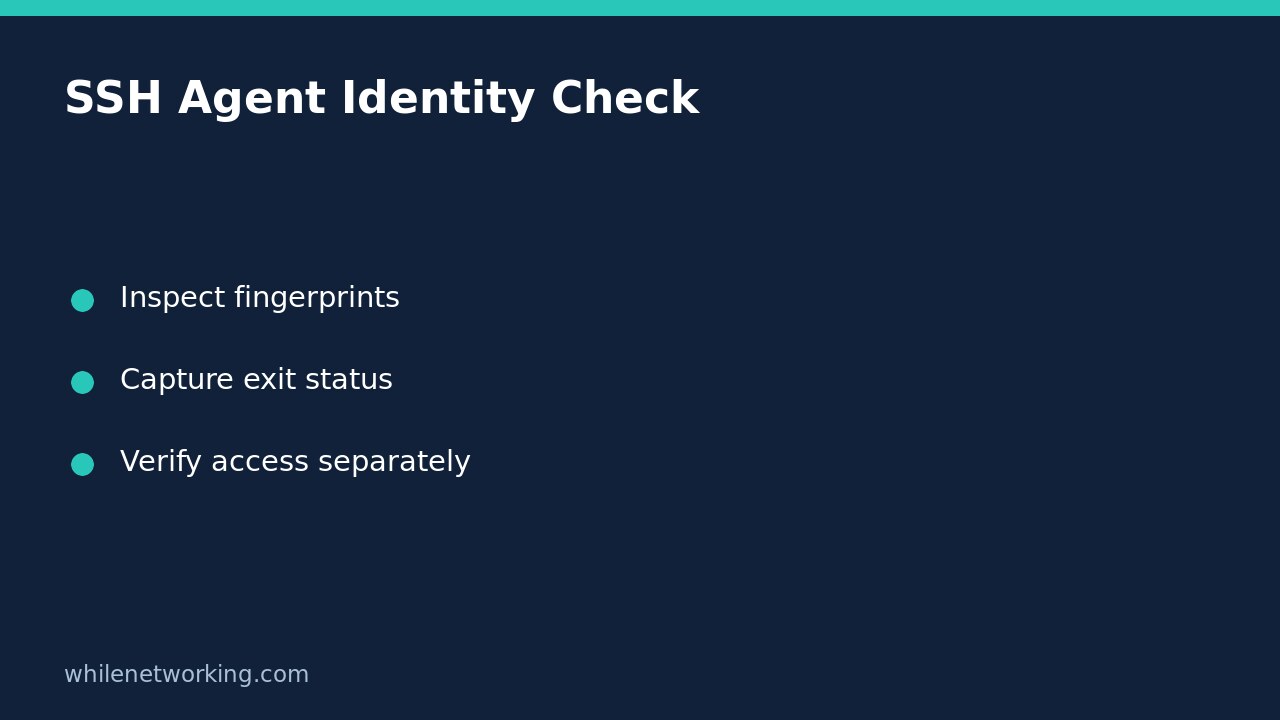

To list fingerprints of identities currently represented by an OpenSSH authentication agent, run ssh-add -l. Include -E sha256 to request SHA256 fingerprints explicitly. This inspection does not load a key, remove a key or connect to an SSH server. It answers a narrower question: which identities does the agent reachable from this shell currently report?
This is useful when one terminal can authenticate but another cannot. Before generating replacement keys or changing a server’s authorised-key file, establish whether the terminals are actually using the same agent context.
Start with the current shell, not a new agent
Open the terminal where the problem occurs and use the read-only command below. This example is for Bash on a Unix-like system with OpenSSH installed. Check your installed manual if your platform supplies a different agent implementation or older option set.
ssh-add -l -E sha256
status=$?
printf 'ssh-add exit status: %s\n' "$status"
Save the status immediately after ssh-add. A later successful command would replace $?. The final printf displays the captured status; its own success does not mean that the preceding agent query succeeded.
Do not start with bare ssh-add. The OpenBSD manual explains that running it without arguments attempts to add default private-key identities. Similarly, uppercase -D deletes all identities, while lowercase -d removes specified identities. Those are changes, not diagnostic listing options.
Interpret the response and status together
A successful list normally contains a key size, fingerprint, comment and key type for each reported identity. Use the fingerprint for comparison with a trusted record. Comments are labels supplied with keys; an email-like comment is not proof of a person’s identity or authority.
- Status 0: the requested operation succeeded. Read the listed fingerprints rather than assuming the expected key is present.
- Status 1: the command failed. An empty agent can produce a no-identities message with this status; inspect the actual diagnostic rather than treating every status 1 as the same cause.
- Status 2: the manual identifies this as inability to contact the authentication agent. This is not evidence that your private-key files were deleted.
Keep standard error as well as standard output when recording a problem. A blank output panel alone cannot distinguish an unavailable agent, an empty identity set or an unsupported option.
Understand which agent you inspected
On Unix-like OpenSSH clients, SSH_AUTH_SOCK identifies the socket used to communicate with the agent. Different terminals, remote sessions, containers and privilege contexts can inherit different environments. A listing in one shell does not establish what another shell can reach.
Do not copy an unfamiliar socket path from a forum or another account simply to make the command work. Follow your organisation’s supported login or agent-start procedure. Avoid running the check under sudo as a shortcut: that can change the environment and no longer represent the application user’s session.
If you are connected to another machine with agent forwarding, the agent visible there may represent forwarded access rather than private keys stored on that machine. Treat socket access as sensitive. Listing identities does not establish that forwarding is safe, intended or permitted.
Compare identities without exposing private keys
Compare the listed SHA256 fingerprint with the approved public-key record for the intended account. For that separate task, see checking an SSH public-key fingerprint before granting server access. No private-key upload is needed for an identity comparison.
The -L option lists public-key parameters rather than just fingerprints. Public keys are not private signing material, but they and their comments can still reveal account relationships. Share only the minimum evidence required through an approved support channel. Never paste private-key files, passphrases or a complete sensitive environment dump into a ticket.
What a fingerprint list cannot prove
An agent listing does not prove that a particular server will accept an identity. Server account names, authorised keys, certificate validity, client selection rules and policy restrictions remain separate checks. The list also does not prove that the client actually offered that identity during a particular failed connection.
For example, if the expected fingerprint appears in Terminal A but not Terminal B, record the difference before making changes. If it appears in both, stop assuming that adding it again will solve the problem. Continue with an authorised connection investigation, preserving relevant diagnostics and avoiding repeated login attempts that could trigger account protections.
Quick questions before changing anything
Did you inspect the failing shell? Was the status captured immediately? Is the expected fingerprint present? Is the agent local or forwarded? Is the next proposed step a read-only investigation or a key-management change requiring approval? No rollback is needed for the listing itself because it does not change the agent’s identity set.
Source: OpenBSD ssh-add manual, including listing options, environment and exit statuses.
Educational-use disclaimer: Test commands carefully before using them in production. The site owner is not responsible for misuse, damage, data loss or production issues.