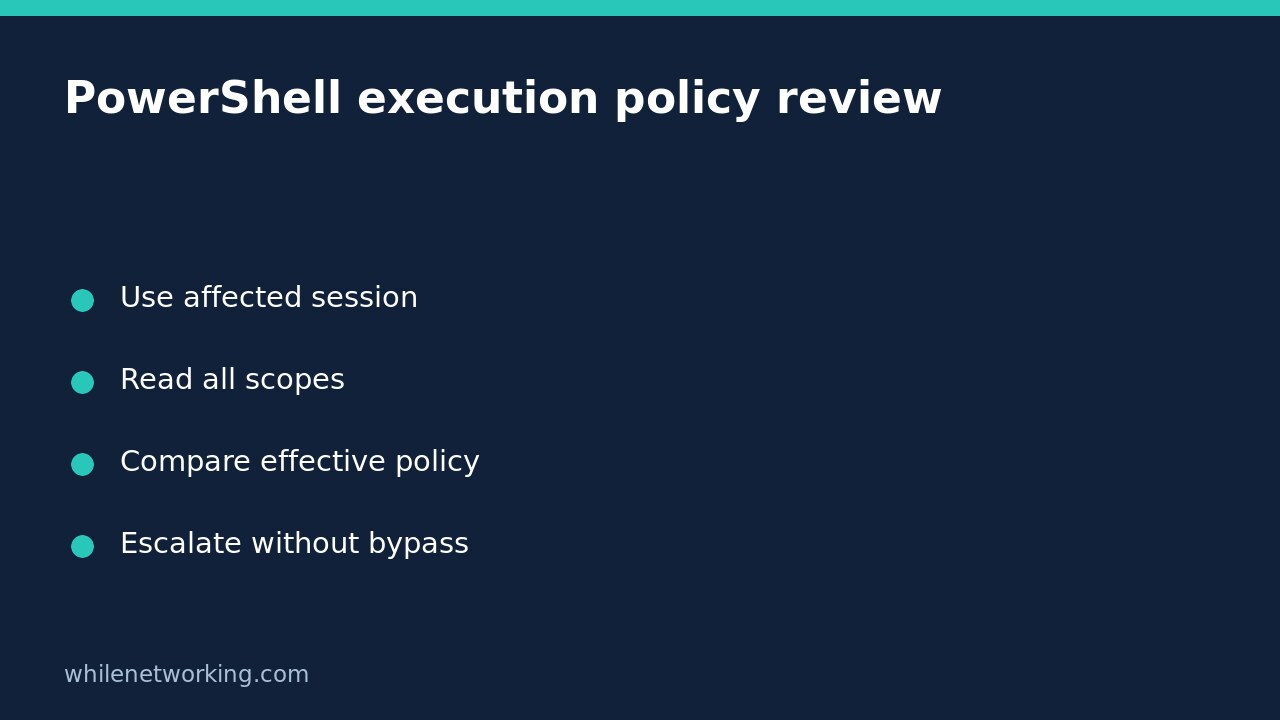

Run Get-ExecutionPolicy to see the effective execution policy of the current PowerShell session on Windows. Then run Get-ExecutionPolicy -List to see the contributing scopes. A setting at one scope is not necessarily the setting that governs your session, and a policy that allows a script does not certify that script as safe.
This read-only review is useful when a support ticket says that a script is blocked even though somebody previously changed a setting. Collect evidence before changing anything. The objective is to explain precedence and identify the responsible administrator, not to circumvent a restriction.
Inspect the session that actually has the problem
Open the same PowerShell application and use the same account as the affected task. Do not assume that a separate administrator window represents the original session: the account, host, PowerShell version and process-level settings may differ. For an automated job, obtain the details of its execution context rather than substituting your interactive desktop session.
Run these commands individually in that Windows PowerShell session:
$PSVersionTable.PSVersion
Get-ExecutionPolicy
Get-ExecutionPolicy -List
Get-ExecutionPolicy -Scope CurrentUser
The first command records the engine version. The second returns the effective policy. The third displays all scopes in precedence order, while the last inspects one specific scope. None of these commands changes execution policy, unblocks a file or executes the script being investigated. They do not require you to launch the suspect script to collect the policy values.
Read precedence rather than choosing the strictest word
Microsoft’s execution-policy overview lists this scope order: MachinePolicy, UserPolicy, Process, CurrentUser, then LocalMachine. The first applicable defined policy in that order governs the session. This is not a contest in which the policy with the most restrictive-sounding name automatically wins.
Consider this hypothetical inventory, not output from your computer:
- MachinePolicy: Undefined
- UserPolicy: Undefined
- Process: Undefined
- CurrentUser: AllSigned
- LocalMachine: RemoteSigned
The effective result is AllSigned because CurrentUser takes precedence over LocalMachine in this example. A support note that only records the machine-wide RemoteSigned setting would miss the operative value. Ask for the actual no-parameter command result alongside the scope list, rather than calculating a conclusion from an incomplete screenshot.
Undefined means that no execution policy is set at that scope. It is not another name for Bypass and does not by itself prove that scripts are permitted. If all entries are Undefined, a platform default still applies. Record the observed effective result instead of assuming a default from memory.
Separate policy, provenance and script behaviour
AllSigned requires signatures, including for locally written scripts, but Microsoft warns that signed code can still be malicious. RemoteSigned distinguishes certain downloaded files from local files; it does not perform a full behavioural security review. A permissive value is therefore not an instruction to trust a downloaded script.
For a related provenance check, see checking a Windows installer’s signature before running it. That is a separate file-signature task, not a way to change the effective policy or prove that the file’s behaviour is harmless.
Microsoft explicitly describes execution policy as a safety feature and defence in depth, not a security boundary. Keep endpoint protection, access controls, approved software distribution and code review separate in the investigation. A policy readout alone cannot establish that a device is free of malware or that a script complies with your organisation’s rules.
Handle Group Policy without trying a bypass
MachinePolicy and UserPolicy are set through Group Policy. If either supplies the governing value, send the scope inventory and exact error to the policy owner. Changing a lower-precedence scope cannot override the governing Group Policy. Do not respond to a blocked script by disabling protection, removing download markers or starting an unrestricted session.
Even where no Group Policy applies, a proposed change needs an approved reason, a defined scope and an owner. This tutorial makes no such change, so no rollback is necessary. Preserve the original error, script source and session details for the person authorised to decide what happens next.
Frequently missed checks
Can I use PowerShell inside Linux to check Windows enforcement? No. Microsoft documents that non-Windows systems return Unrestricted and do not implement Windows execution-policy enforcement. Run the inspection in the affected Windows environment.
Does an allowed script mean execution succeeded? No. Policy eligibility is separate from file permissions, dependencies, runtime errors and the script’s actual result.
What should the handover contain? Include the engine version, account and host context, effective policy, all scope values and exact error. Keep sensitive paths or user information out of public tickets.
Sources: Get-ExecutionPolicy reference and Microsoft’s execution-policy overview.
Educational-use disclaimer: Test carefully before using steps in production and work only on systems you are authorised to manage. The site owner is not responsible for misuse, damage, data loss or production issues.