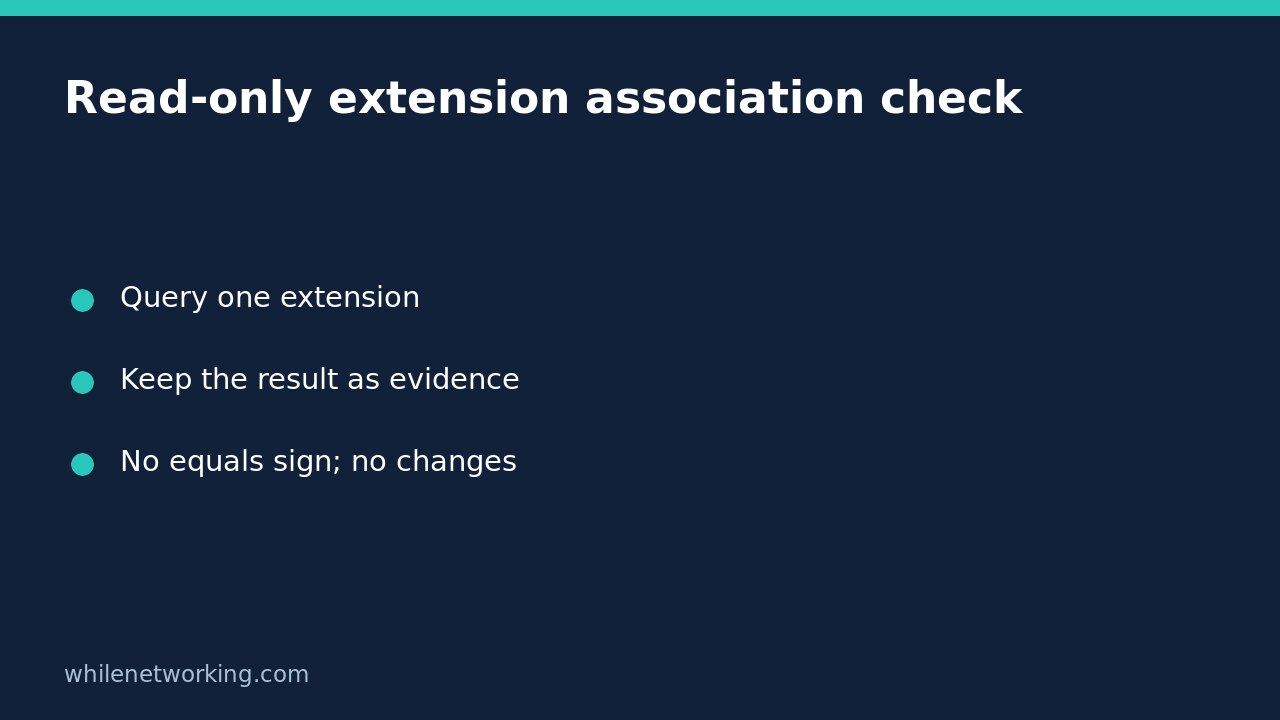

To inspect a Windows file extension association without changing it, open Command Prompt and run assoc .txt. The important boundary is the missing equals sign: this is a query, not an instruction to replace or remove a mapping. Record the result before attempting a default-app repair.
This workflow is for collecting a small, understandable piece of evidence. It does not open the file, inspect its contents, or prove that a particular application will successfully handle it. Do not use double-clicking an unfamiliar attachment as a diagnostic test.
Use Command Prompt rather than a bare PowerShell command
Microsoft documents assoc as a command supported within cmd.exe, not as a PowerShell command. Open the Start menu, search for Command Prompt, and use a normal window for this inspection. There is no reason to begin by elevating a read-only evidence-gathering session.
assoc .txtIf you are already using PowerShell, explicitly invoke Command Prompt for the query:
cmd /c assoc .txtThe two examples request the same extension information through the appropriate command interpreter. They are Windows commands, not Linux shell commands. An error from typing bare assoc in PowerShell does not establish that the extension mapping is broken; first correct the execution context.
Interpret the mapping without treating it as a repair
An illustrative response might be .txt=txtfile. Here, the text on the left is the extension being queried, and the text on the right is the associated file type identifier. Your computer can return a different identifier. Do not copy this illustrative response back into the prompt as a recommended setting.
The identifier is not itself an executable path or a guarantee that the intended application is installed and healthy. Microsoft points readers to ftype for file types with open-command strings. That is a separate diagnostic layer; seeing an association alone is not an end-to-end test of opening a document.
If the query reports no association, retain that message. Do not infer that the document is corrupt, unsafe, or impossible to recover. Conversely, a returned mapping does not prove that a document is genuine or readable. This command examines the extension association, not the bytes of the particular file you are investigating.
Keep query syntax separate from modification syntax
The safest rule for this task is simple: use only the command and the literal extension, with no equals sign. Microsoft documents equals-sign forms for modifying or removing associations. Even an apparently empty value can be a change request, not a harmless way of asking for more information.
- Keep the leading dot in the extension, such as
.txt. - Do not append an equals sign to a query.
- Do not paste angle-bracket placeholders from syntax documentation into Command Prompt; they have shell redirection meanings.
- Do not run a downloaded registry repair simply because the identifier looks unfamiliar.
Running assoc without parameters lists associations. That broader inventory can be useful, but a single-extension query is usually easier to attach to a help-desk ticket and less likely to distract from the actual symptom.
Build a useful evidence note before changing defaults
- Record the affected filename and extension without opening an untrusted file.
- Record the exact user-visible symptom, such as an application chooser appearing instead of the expected program.
- Copy the command and its complete response into your support note.
- Record whether you ran Command Prompt directly or used the PowerShell wrapper.
- Keep any later default-app change separate, including what changed and whether the original symptom improved.
This distinction prevents a common reporting error: saying an association was fixed when only an inspection command completed. The query makes no configuration change, so it has no configuration rollback step. Any subsequent repair requires its own authorization and reversal plan.
If troubleshooting also involves preserving an important document, see comparing an original file and USB copy before deleting anything. File preservation is a separate task from association inspection; neither result should be substituted for the other.
Quick questions and final checklist
Does an association tell me whether an attachment is safe? No. It describes an extension mapping, not the attachment’s trustworthiness.
Should I change the mapping to match another PC? Not automatically. Different installed applications and intended workflows can legitimately produce different results.
What should I send to support? The exact extension, command, response, and original symptom—not just a statement that the command worked.
Source: Microsoft’s assoc command reference, including supported shell, query syntax, and modification cautions.
Safety: This tutorial is for educational purposes. Test carefully before applying any steps in production. WhileNetworking is not responsible for misuse, damage, data loss, or production issues.