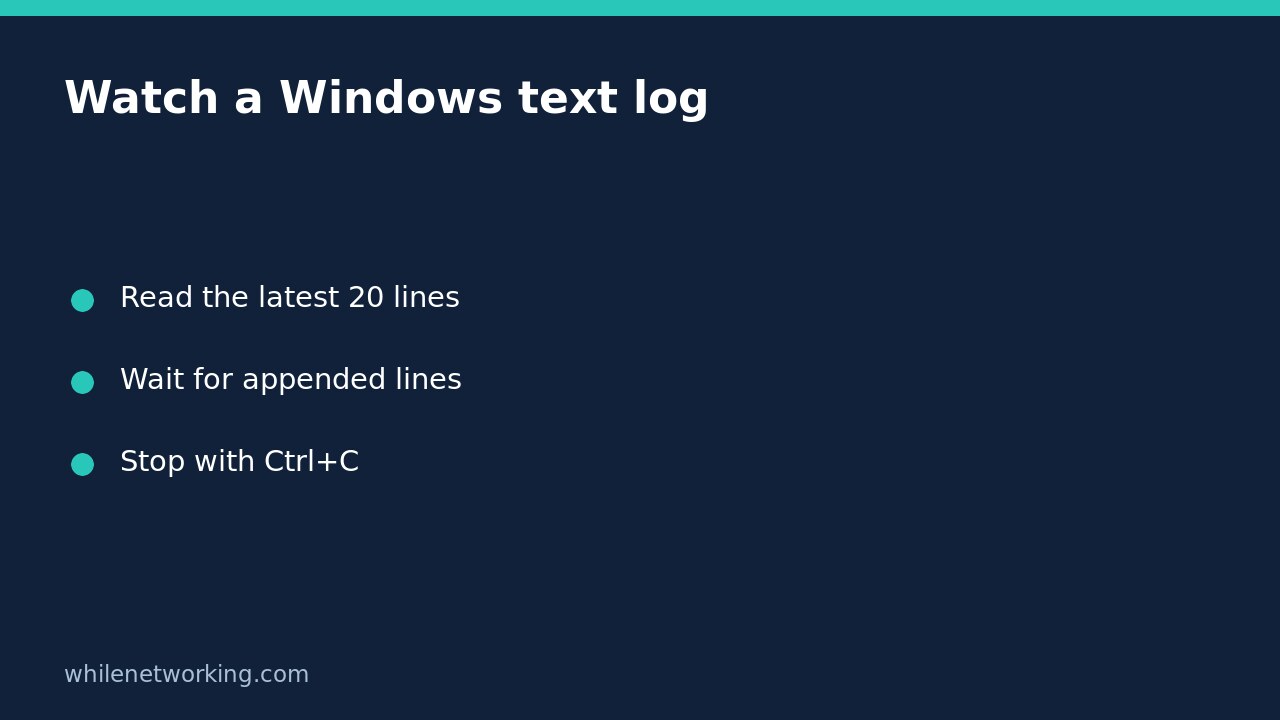

To see recent lines from a Windows text log and keep watching for additions, use PowerShell Get-Content with -Tail and -Wait. This is useful while reproducing a local application error: you can read a short starting context instead of dumping a large file. It is a view of one file, not proof that the application is healthy or that all relevant events are being captured.
Start with a small read-only view
Open PowerShell, not Command Prompt, and substitute the actual text-log path in this example. The commands do not create, truncate or clear that log. First inspect a finite sample so you can confirm the file and its contents before leaving a monitor running.
Get-Content -LiteralPath 'C:\Logs\application.log' -Tail 20 -ErrorAction StopThe result contains up to the last 20 lines. A shorter file naturally has fewer lines. -LiteralPath tells PowerShell to interpret the path exactly instead of treating characters such as square brackets as wildcard syntax. Quotes preserve spaces in a path but do not, by themselves, turn a wildcard-aware parameter into a literal one.
If the file is missing or access is denied, resolve that specific problem rather than treating the absence of displayed lines as an empty, healthy log. Confirm the application configuration and current log destination. Do not elevate the terminal or change folder permissions simply to make the example work without understanding why access was restricted.
Follow appended lines and stop without clearing evidence
Once the finite sample looks correct, add -Wait:
Get-Content -LiteralPath 'C:\Logs\application.log' -Tail 20 -Wait -ErrorAction StopPowerShell displays the starting tail and then keeps the file open while checking for new lines. Microsoft documents a once-per-second check while waiting; this is not a promise that every application event appears immediately. The application may buffer its output or write to another file. Press Ctrl+C to interrupt this watcher. That stops the PowerShell command; it is not an instruction to stop the application producing the log.
A waiting command does not normally return to the prompt after the initial lines. That behavior is expected, not a terminal freeze. Use another terminal or the application’s usual interface to reproduce the issue. Record the approximate reproduction time so you can distinguish old messages in the initial tail from newly appended evidence.
Interpret silence and log rotation carefully
A quiet window means only that this reader has not displayed new lines from the watched file. It does not establish successful requests, working connectivity or a successful background job. Check whether the producer actually reached the relevant operation, whether logging is enabled, and whether the active filename changed.
Many applications rotate logs by replacing, renaming or deleting files. Do not assume this command automatically follows every replacement with the same name. Microsoft specifically notes that deleting the file interrupts waiting with an error. If output stops during rotation, interrupt the watcher, inspect the application’s current logging path, and start a fresh finite read against the correct file before following it again.
Do not delete or truncate a log to make monitoring easier. That destroys evidence and can interact badly with an application holding an open file. Preserve relevant originals according to your organisation’s retention rules, and remember that logs can contain tokens, customer information or internal addresses. Review and redact a separate copy before sharing it.
Parameters that change the reader task
-Tail selects lines from the end; it is not a byte limit or a timestamp filter. A single enormous line can still be large. -TotalCount addresses a different task: reading a specified number of lines from the start. With waiting enabled, it can wait for enough lines before returning. Do not substitute it when you mean to inspect the latest context.
-Raw returns content as one string, but Microsoft states that it cannot be combined with -Wait. Keep this monitor line-oriented. Encoding is another separate concern: if characters look corrupted, confirm the producer’s encoding and consult the parameter support for your installed PowerShell version instead of rewriting the source log.
Before using the watcher during troubleshooting
- Confirm the exact file and verify a finite tail first.
- Record the reproduction time and expected application action.
- Leave the producer running normally; stop only the watcher with Ctrl+C.
- Recheck the active path after rotation or unexpected silence.
- Preserve evidence and redact copies before sharing.
For filenames containing brackets, the related PowerShell LiteralPath tutorial explains why quoting and literal path selection solve different problems.
Source and safety
See Microsoft’s Get-Content documentation for Tail, Wait and their parameter restrictions. These commands are documentation-based examples, not a claim of a test against your Windows application. This tutorial is for educational purposes. Test carefully before production use; the site owner is not responsible for misuse, damage, data loss or production issues.