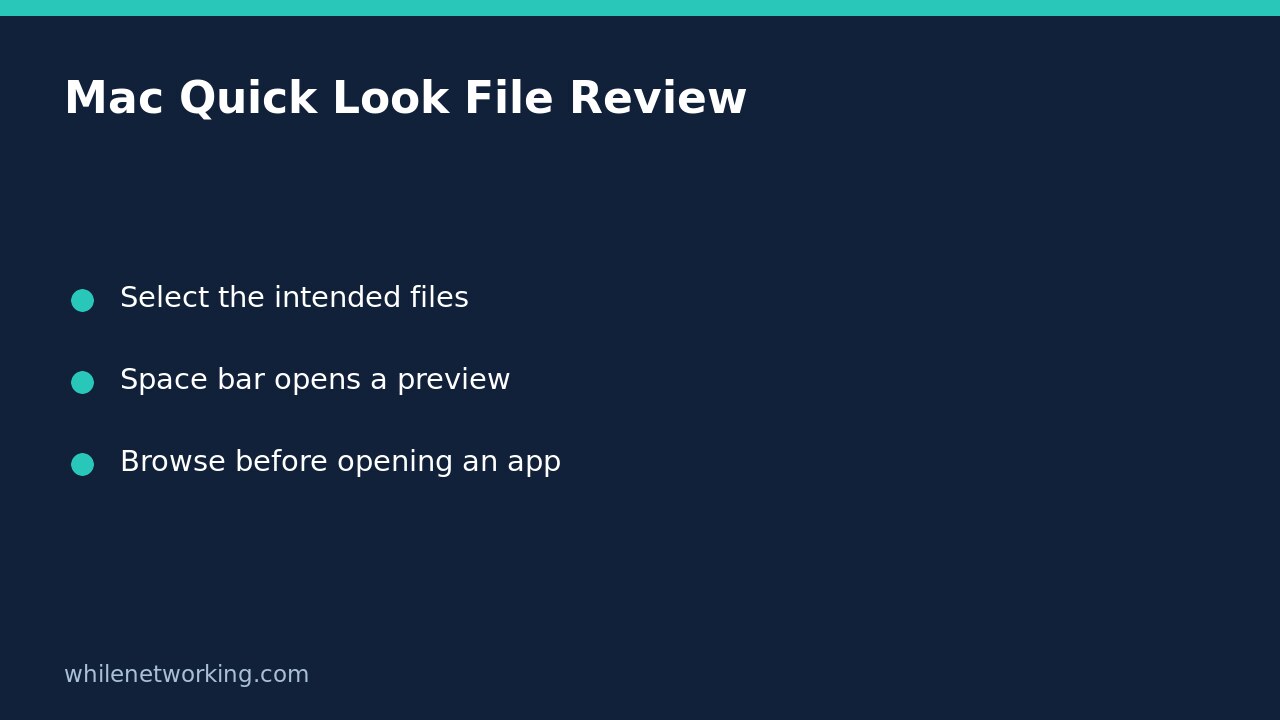

To inspect several files on a Mac without launching their usual apps, select them in Finder and press the Space bar. Quick Look opens a preview window; use its navigation arrows to move through the selection. This is useful when you need to identify the right attachment or photo before opening, sharing or editing it. However, Quick Look also contains editing tools, so a preview window should not be mistaken for a guaranteed read-only workspace.
Select a small review set first
Open the folder containing the files and select a few items you recognise. For a first attempt, use ordinary, non-sensitive photos or PDFs rather than confidential client records. Check which files are highlighted before pressing Space. You are previewing that selection, not automatically reviewing every file in the folder.
For example, suppose a folder contains three similar photographs intended for a report. Select those three photographs, then open Quick Look. Apple explains that when several items are selected, the last item selected appears first. Do not assume the first preview is the earliest filename or the first item you clicked. Read the filename and inspect the content before deciding which one to use.
If filenames are confusing, first use our guide to showing filename extensions without changing file types. An extension helps identify the apparent format, but it is not proof that a file is safe or that its contents match its name.
Move between previews and use the overview
- With the intended files selected, press the Space bar once.
- Use the arrows near the top-left of Quick Look, or the Left Arrow and Right Arrow keys, to browse the selected items.
- For a multi-item selection, press Command-Return to display the items in a grid.
- Inspect the visible choices and return to the individual item you need.
- Press the Space bar again, or use the window’s close control, when finished.
Apple also documents a full-screen slideshow for multiple selected items. For a quick office check, the ordinary window is often simpler: you can resize it by dragging its corners while retaining context from the Finder window behind it. On supported images, Command-Plus and Command-Minus adjust the preview size. These viewing actions should not be confused with exporting a resized image.
Avoid changing an original while reviewing
Quick Look is not just a picture of a file. Depending on the item, it can expose rotation, Markup and audio or video trimming controls. If your task is only to choose an attachment, leave those tools alone. Do not click through an unfamiliar save or replacement prompt merely to dismiss it.
For audio and video trimming, Apple’s instructions distinguish reverting changes from completing the edit, and then choosing whether to replace the original or create a new file. That choice matters: creating a derivative and overwriting the only original are different outcomes. Practise edits on a disposable copy, and verify where the result was saved before using it for real work.
The Open with button moves beyond previewing and opens the item in an app. Similarly, Share starts a separate sharing workflow; it is not necessary just to inspect the selection. Confirm the exact item before using either control, especially if several near-identical versions are present.
What to check if the preview is unexpected
If only one file appears, close Quick Look and inspect the Finder selection again. A single selected file does not provide a multi-file review set. If the first image seems wrong, remember the last-selected-item behaviour before assuming Finder reordered or lost files.
If a format does not display usefully, that alone does not establish corruption. Apple describes support for nearly any kind of file, not an unconditional promise that every format will have a complete preview. Check the source and intended app before proceeding; do not install an unknown preview extension or disable security controls just to view an unexpected attachment.
Quick review checklist and FAQ
- Are all intended files selected, with unrelated confidential files excluded?
- Does the displayed filename match the item you want?
- Have you avoided editing, replacement and sharing controls during inspection?
- Have you closed the preview before choosing your final next action?
Does Quick Look create a backup? No. Previewing is an access method, not a backup procedure or a recovery guarantee.
Can I preview without opening the usual app? Yes, that is the purpose of this workflow. It does not mean the file is safe merely because a preview appears.
Source: Apple’s Quick Look instructions document selection, navigation, grid view and the available editing controls. Interface details can differ by macOS version and file type.
This tutorial is for educational purposes. Test carefully on disposable files before using these steps in production. The site owner is not responsible for misuse, damage, data loss or production issues.