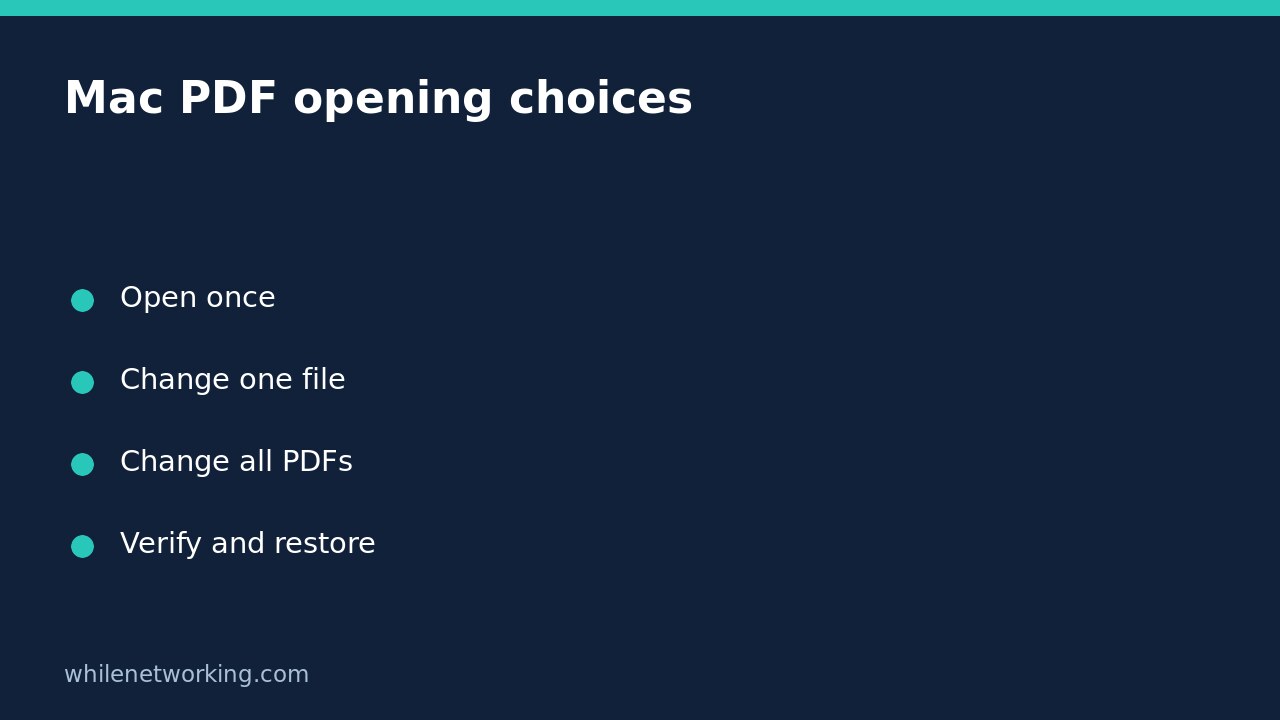

To open a PDF in a different Mac app just once, Control-click the file in Finder and choose Open With. To change which app normally opens a selected file, use Get Info and its Open with menu. Click Change All only when you intend to change the default for all files of that type.
That distinction matters when you occasionally need a specialist PDF editor but prefer a simpler reader for everyday documents. You do not need a Terminal command or a system-wide reset to make this choice. The following example keeps the scope explicit and includes a way back.
Start with a harmless sample PDF
Choose a non-sensitive document you can recognise easily. If you intend to edit it, make a duplicate first and work on the copy. Record which app opens it now by double-clicking it and looking at the app name in the menu bar. Close the document before continuing.
Changing an opening preference is not the same as converting the document or changing its contents. However, the app you subsequently use might save edits, annotations, or format changes. A spare copy protects the original while you test that behaviour. Avoid using an irreplaceable signed agreement as your first experiment.
Use Open With for a one-time choice
- Locate the sample PDF in Finder.
- Control-click it, or use a secondary click.
- Choose Open With, then select the trusted app you want to try.
- Check that the correct document opened and inspect it without saving changes.
Apple also documents selecting a file and choosing File > Open With, dragging a file onto an app icon, or opening a document from within an app. These are useful ways to try another reader without deliberately replacing the default for every PDF.
For example, you might open one diagram-heavy PDF in a different reader to compare its display. That is a narrower decision than assigning every PDF to that reader. Do not use Change All merely because you want to inspect one document differently today.
Use Get Info when you want a persistent choice
In Finder, select the PDF and choose File > Get Info. Expand the Open with section if needed, then select the desired installed app from its pop-up menu. If your intention is limited to the selected file, do not click Change All. Close the Info window and double-click the file to verify the result.
Now test a second, unrelated PDF. This extra check is important: it distinguishes a targeted change from a file-type-wide preference. If the second file still opens in the previous app, you have evidence that your everyday workflow remains intact. Files can have their own opening preferences, so observe what actually happens rather than assuming every document behaves identically.
Choose Change All only for an intentional file-type default
If you genuinely want PDFs generally to open in the new app, return to Get Info for a PDF, choose that app under Open with, and click Change All. Read any confirmation before accepting. Then close the window and double-click another ordinary PDF to check the association.
Keep the scope in perspective: a default PDF association does not make the app the editor for every document format, and it does not guarantee that every PDF feature will work identically. Forms, annotations, and unusual document structures can behave differently between apps. Test the features you actually need before adopting a new reader across a work team.
Restore the previous choice or investigate a failure
To reverse a file-type-wide change, repeat Get Info on a PDF, choose the previous app you recorded, and select Change All again. To reverse a selected-file change, choose the previous app for that file without broadening the scope. Verify with double-clicks after either adjustment.
If an app cannot open the PDF, do not assume the default setting is broken. Apple’s guidance notes that the document may be damaged or unrecognised by the app. Try a different trusted reader and a different known-good PDF. If one document fails in multiple apps but other PDFs work, investigate that document or obtain another copy from its legitimate sender.
For a wider record of what you tested, use the site’s Mac problem-diagnosis checklist. Record the affected filename, intended app, scope of change, and verification result without sharing confidential document contents.
Quick FAQ and source
Does changing the default repair a damaged PDF? No. It changes the app used to open the file, not the file itself.
Must I change all PDFs to try another reader? No. Use Open With for a one-time opening first.
Official reference: Apple: Choose an app to open a file on Mac.
Safety notice: This tutorial is for educational purposes. Test carefully before using these steps in production or on managed work devices. The site owner is not responsible for misuse, damage, data loss, or production issues.