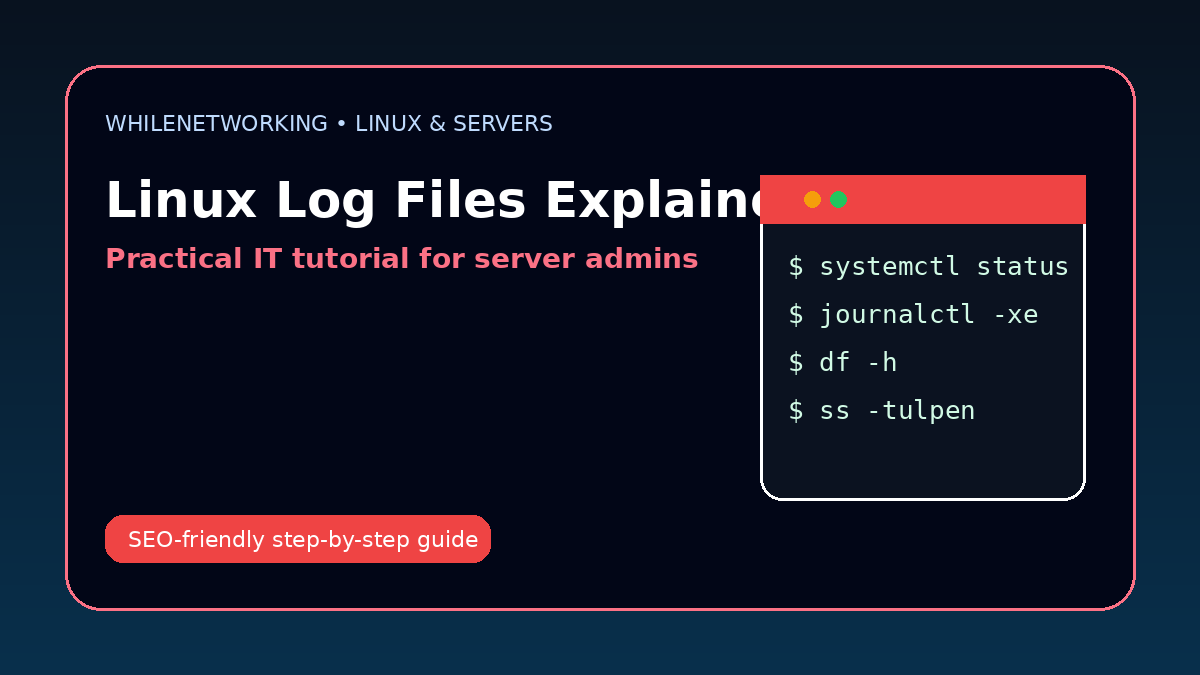

Linux Log Files Explained is a practical skill for IT professionals who manage Linux systems, websites, cloud servers, virtual machines or internal infrastructure. This tutorial explains the topic clearly and gives commands you can practice safely.
- Learn the core Linux/server concept
- Understand real-world admin use cases
- Practice useful commands
- Follow safer troubleshooting habits
Why logs are important
Logs show what happened on a server. They help troubleshoot failed services, login attempts, application errors, cron jobs and security events.
Using journalctl
journalctl reads systemd logs. You can filter by service, time, boot session or severity level.
Traditional log files
Many systems still store logs under /var/log. Common files include syslog, auth.log, kern.log and application-specific logs.
Reading application logs
Web servers, databases and custom apps usually have their own logs. Always check the application documentation for log paths.
Good troubleshooting habit
When fixing a problem, reproduce the issue and watch logs in real time. This makes it easier to connect symptoms with errors.
Useful commands
journalctl -xe
journalctl -u nginx --since "1 hour ago"
tail -f /var/log/syslog
tail -f /var/log/auth.log
grep -i error /var/log/syslog
Best practices for IT professionals
- Test commands in a lab before using them on production servers.
- Take notes before making changes so you can roll back if needed.
- Check logs before restarting services.
- Use least privilege instead of running everything as root.
- Document fixes for future troubleshooting.
Final thoughts
Linux and server administration become easier when you build a repeatable troubleshooting process. Practice these commands regularly and connect each command to a real operational problem.
Educational note: This tutorial is for learning purposes. Test carefully and do not make production changes without approval, documentation and backups.