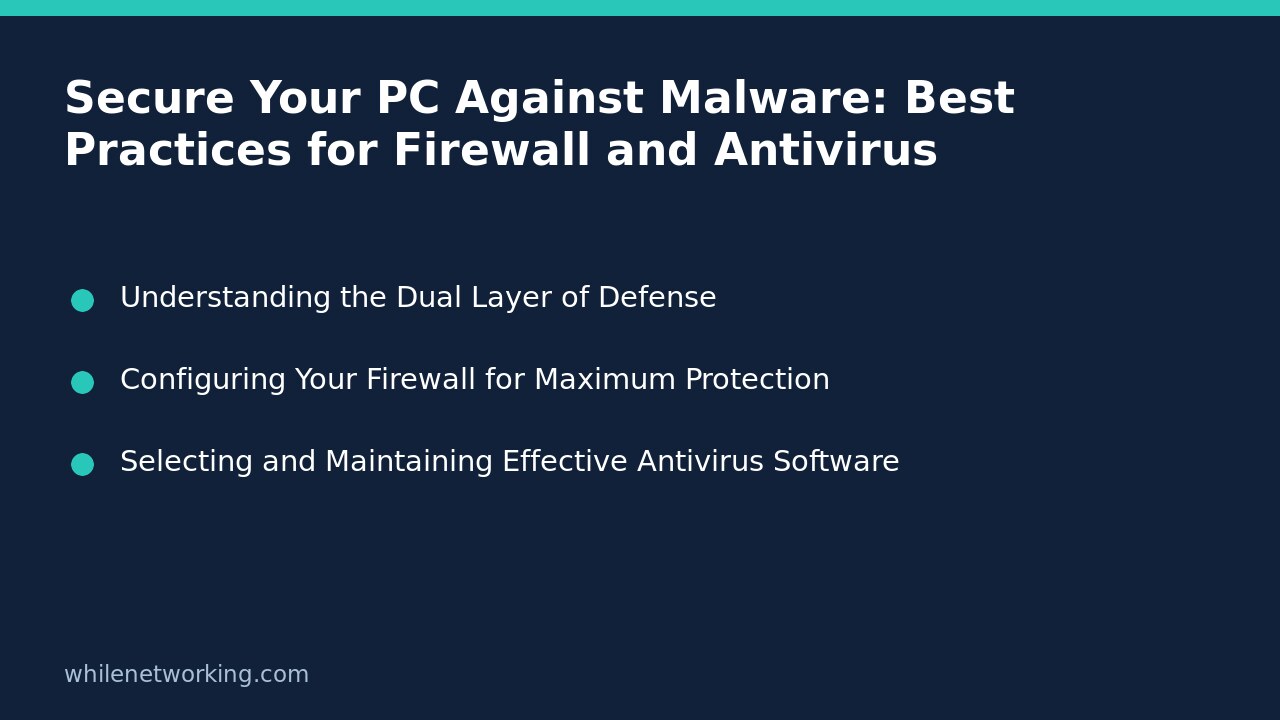

In an era where cyberattacks evolve daily, relying on a single line of defense is no longer sufficient. Whether you are a casual home user or a small business owner protecting sensitive data, your computer’s security posture depends heavily on the proper configuration of your firewall and antivirus software. These two components work in tandem: the firewall acts as a vigilant gatekeeper monitoring incoming and outgoing network traffic, while antivirus software scans for and neutralizes malicious code that manages to breach those defenses. Ignoring either component leaves your system vulnerable to ransomware, spyware, and data theft. This guide outlines the essential best practices to ensure your PC remains robust against modern threats.
Understanding the Dual Layer of Defense
To secure your PC effectively, you must understand how firewalls and antivirus programs function differently yet complementarily. A firewall operates at the network level, inspecting packets of data entering or leaving your device. It decides whether to allow or block traffic based on predefined security rules. Without a firewall, your computer is exposed to unsolicited connections from hackers scanning for vulnerabilities.
Antivirus software, conversely, operates at the application and file level. It maintains a database of known malware signatures and uses heuristic analysis to detect suspicious behavior in files and processes. Even if a firewall blocks an attacker’s initial entry point, sophisticated malware can sometimes use legitimate applications or user error to infiltrate the system. Once inside, antivirus tools are responsible for identifying, quarantining, and removing these threats. Relying solely on one of these tools creates a critical gap in your security architecture.
Configuring Your Firewall for Maximum Protection
Most modern operating systems, such as Windows 10/11 and macOS, come with built-in firewalls that are often enabled by default. However, “enabled” does not always mean “securely configured.” The most common mistake users make is disabling the firewall to “allow more programs,” which effectively leaves the door wide open.
You should ensure that your firewall is set to block all incoming connections by default. This forces any application attempting to connect to your PC to request explicit permission, a process known as “outbound filtering” and “stateful inspection.” When configuring advanced settings, be wary of third-party security suites that may offer to manage your firewall. While convenient, these tools can sometimes introduce conflicts or less rigorous rules than the native OS firewall.
For Windows users, navigate to Settings > Update & Security > Windows Defender Firewall. Here, you can view which programs are allowed to communicate through the firewall. It is highly recommended to review this list and remove unnecessary entries. If you use a router with a built-in firewall (common for home networks), ensure it is updated to the latest firmware and that its default admin password has been changed. A properly configured network firewall adds a crucial layer of defense before data even reaches your individual PC.
Selecting and Maintaining Effective Antivirus Software
Choosing the right antivirus solution is equally critical. While paid software often includes additional features like ransomware protection and identity theft monitoring, reputable free solutions from major vendors provide robust core protection. The key metric for selection should not be price, but rather detection rates, performance impact on system speed, and ease of use.
Once installed, the most significant oversight users make is neglecting automatic updates. Malware authors frequently release new variants daily; if your antivirus definition database is outdated, it cannot recognize these new threats. You must configure your software to update definitions automatically every night or upon startup. Additionally, ensure that real-time scanning is enabled. Real-time protection scans files as they are created, modified, or accessed, stopping malware execution before it can cause harm.
Avoid the pitfall of “security fatigue,” where users disable pop-up warnings from their antivirus because they appear intrusive. These warnings often indicate a critical threat has been detected. Disabling them renders your software blind to active infections. Furthermore, run a full system scan at least once a month, even if no issues are reported by the daily real-time scanner. This periodic deep dive can uncover dormant threats that might have slipped past initial detection mechanisms.
The Critical Importance of Automatic Updates
A common misconception is that installing antivirus software guarantees security. However, outdated software is like a castle with crumbling walls. Cybercriminals target known vulnerabilities in operating systems and applications, not just the antivirus software itself. If your OS or web browsers are not patched, malware can exploit these holes to bypass both firewall and antivirus controls.
Enable automatic updates for your operating system, web browser, and all installed applications. For Windows, this is found in Settings > Update & Security > Windows Update. On macOS, go to System Preferences > Software Update. Do not rely on manual checks; the moment a patch is released, it should be applied immediately. This reduces the “window of vulnerability” during which your system is susceptible to exploitation.
Recognizing and Avoiding Common Configuration Mistakes
Even with good tools in place, user error can compromise security. One frequent mistake is sharing login credentials for antivirus software with other family members or employees without changing default passwords. If an attacker guesses a weak password or obtains it through phishing, they could disable your protection entirely. Always use strong, unique passwords for your security software accounts and enable multi-factor authentication (MFA) if the option is available.
Another error involves ignoring “scareware” pop-ups. You may occasionally see advertisements claiming your PC is infected and urging you to call a number or download a specific tool. These are often malicious themselves. Legitimate antivirus software will notify you through its own interface, not via random browser pop-ups. Always verify security alerts by checking the official app directly rather than clicking links in email messages or web advertisements.
Real-World Example: The Home Office Setup
Consider the scenario of a freelance graphic designer working from home who needs to protect both personal photos and client files. This user installs Windows Defender (the built-in Microsoft antivirus) because it integrates seamlessly with the OS and receives automatic updates. They configure the Windows Firewall to block all incoming connections and deny specific applications like instant messengers from accessing the network unless necessary.
The user sets their browser to update automatically and installs a reputable password manager to prevent credential stuffing attacks. They schedule a full system scan for every Sunday morning via task automation. When a suspicious email attachment arrives, the user does not open it immediately; instead, they scan the file with a second-opinion scanner (like Malwarebytes) before deciding whether to delete it. This layered approach mirrors enterprise security strategies but is tailored for a home environment, demonstrating that high-level security does not require complex hardware, only disciplined configuration and habits.
Conclusion
Securing your PC against malware is an ongoing process, not a one-time setup task. By maintaining a strict firewall policy that blocks unauthorized access and utilizing up-to-date antivirus software with real-time scanning, you create a formidable barrier against cyber threats. Remember to prioritize automatic updates for all system components, avoid disabling security warnings, and stay vigilant against social engineering attempts. Your digital safety depends on the consistent application of these practices. As technology evolves, so too must your defensive strategies, but the foundational principles of firewall management and antivirus hygiene remain constant pillars of a secure computing environment.