
Running out of disk space on your Linux system is a common frustration that can halt software updates, crash applications, and prevent new installations. Unlike Windows users who might instinctively run a “Disk Cleanup” utility without thinking, Linux administrators often face this issue by trying to manually delete files they do not fully understand, risking the deletion of critical system logs or configuration backups. The goal is to reclaim space safely and efficiently while maintaining system integrity. This guide provides a comprehensive, distribution-agnostic approach to cleaning your Linux filesystem, moving beyond simple rm commands to utilize built-in tools designed specifically for maintenance tasks.
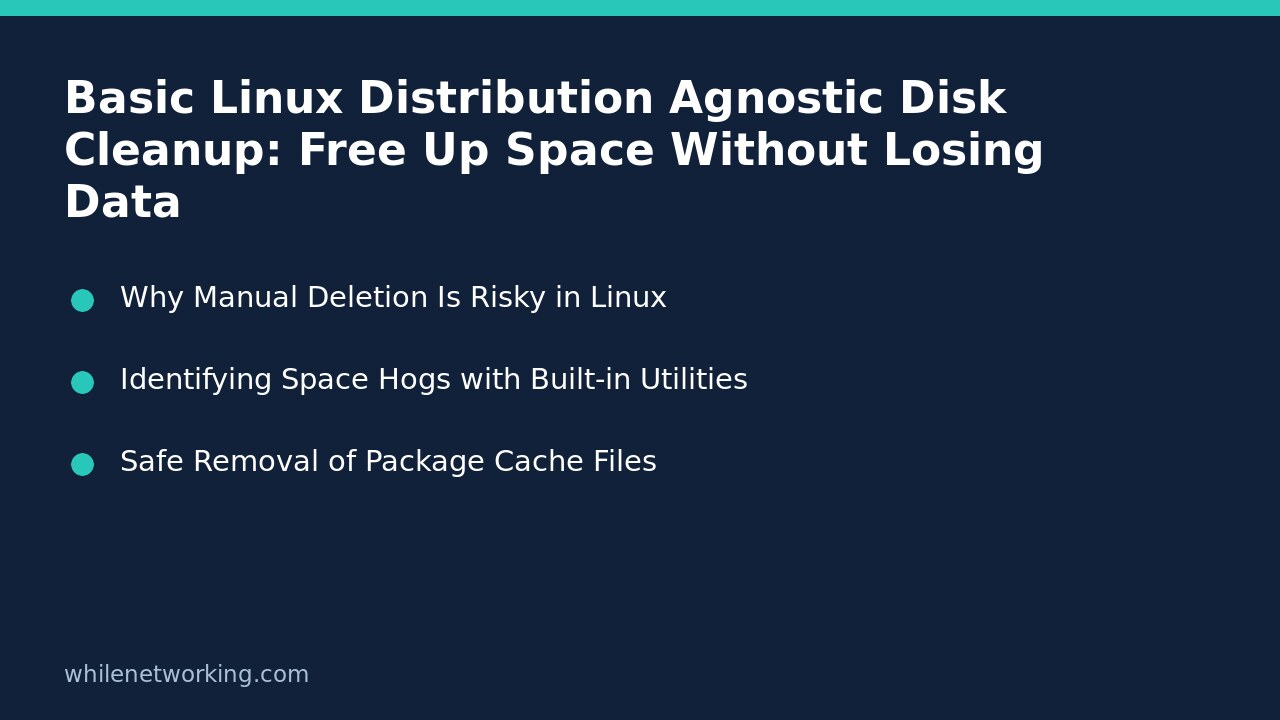
Why Manual Deletion Is Risky in Linux
Before diving into specific commands, it is crucial to understand why blindly deleting files from directories like /var/log, /tmp, or /usr/local can be disastrous. In a Linux environment, every file serves a specific purpose within the system architecture. Deleting a log file might seem harmless until you realize that an application relies on that specific rotation policy for its own state management. Furthermore, removing packages or libraries without using the package manager (like apt, dnf, or pacman) can leave “orphaned” dependencies behind, potentially breaking the system upon the next update cycle.
The safest method of cleanup always involves using tools that understand the filesystem hierarchy and dependency trees. These tools scan for files marked as obsolete, temporary, or cache-based, ensuring that only expendable data is removed. Always remember to verify your current disk usage before making changes so you can quantify exactly what has been freed.
Identifying Space Hogs with Built-in Utilities
The first step in any cleanup operation is accurately identifying where the space is being consumed. While du -sh * provides a quick overview, it can be overwhelming for large directories. A more structured approach involves using the ncdu (NCU Disk Usage) utility, which offers an interactive, tree-like view of directory usage. If you do not have ncdu installed, most package managers offer it; for example, sudo apt install ncdu on Debian-based systems or sudo dnf install ncdu on Fedora/RHEL.
Once installed, run ncdu / to scan your root filesystem. This tool highlights directories consuming the most space, allowing you to navigate down into subdirectories to pinpoint specific offenders. Common culprits often include package cache directories (like /var/cache/apt/archives), old kernel headers in /boot, and massive log files in /var/log. By visualizing this data, you can make informed decisions rather than guessing which folders to target.
Safe Removal of Package Cache Files
One of the most effective ways to free up space immediately is by cleaning your package cache. When you install software using package managers like APT (Debian/Ubuntu), DNF (Fedora/RHEL), or Pacman (Arch), they download entire archive files to /var/cache. These are temporary files that become redundant once the installation process finishes.
For Debian-based systems, the command sudo apt clean removes all downloaded .deb packages from the cache. To be slightly more conservative and keep some files for potential future re-installations without internet access, you can use sudo apt autoremove --purge to remove unused dependencies and sudo apt autoclean to delete obsolete package files. On RHEL-based systems, sudo dnf clean all performs a similar function by removing cached RPM packages. Note that these commands only affect the cache directory and do not touch installed programs or user data.
Managing Old Kernels and System Snapshots
A frequent space consumer on Linux systems is the accumulation of old kernel versions. When you update your operating system, the package manager installs the new kernel but typically keeps the previous one for a safety net in case the new version has critical bugs. Over time, these old kernels can consume hundreds of megabytes or even gigabytes.
To manage this, check your current kernels with uname -r and list installed versions using commands like dpkg --list | grep ^linux-image- on Debian/Ubuntu or rpm -qa kernel on RHEL. If you have multiple generations of the same major version (e.g., 5.15, 5.16, 5.17), it is generally safe to remove the older ones. You can automate this by running sudo apt autoremove --purge which often detects and removes old kernels automatically. Alternatively, you can use the mkinitcpio tools or distribution-specific scripts like apt-mark showmanual combined with manual deletion of kernel packages, provided your bootloader (GRUB) is configured to ignore them.
Handling Temporary Files and Journal Logs
Temporary files are designed to be discarded, but they sometimes persist longer than intended due to disk full errors or misconfigured cron jobs. The /tmp directory is a prime location for cleanup. You can safely clear it with sudo rm -rf /tmp/*, though be aware that some applications may store data there expecting it to persist across reboots if configured incorrectly.
Additionally, system journals (/var/log/journal) can grow indefinitely if not rotated. By default, systemd-journald stores logs in binary format which can become very large. You can limit the size of these logs by editing /etc/systemd/journald.conf. Setting SystemMaxUse=100M ensures that old logs are automatically compressed or discarded once the limit is reached. Running sudo journalctl --vacuum-size=50M manually deletes logs older than 50 megabytes, instantly freeing up significant space without touching application-specific logs.
Verifying Cleanup and Establishing a Routine
After executing your cleanup commands, it is essential to verify the results. Run df -h to display human-readable disk space usage across all mounted filesystems. Compare the “Available” column before and after your operations to confirm that space has been reclaimed as expected. This verification step prevents accidental over-cleaning where a tool might have misidentified a file as cache when it was actually a critical configuration backup.
To prevent future space issues, establish a routine maintenance schedule. Add cleanup commands to your crontab so they run weekly or monthly. For instance, you can add a cron job to run apt autoclean every Sunday at 3 AM. Regularly reviewing ncdu output helps identify new bottlenecks early. Remember that while these methods are safe for standard installations, enterprise environments with custom configurations may require additional checks before running automated scripts. Always backup critical data before performing bulk deletions on production servers to adhere to best practices for data preservation.