
Transitioning from Windows or macOS to a Linux environment can feel like learning a new language, especially when you move beyond the graphical user interface (GUI) and start interacting directly with the terminal. The Bash shell is the engine that powers most Linux distributions, offering immense power but also a steep learning curve for beginners. Fortunately, many of the most common tasks have simple shortcuts that can save hours of typing and reduce frustration. Mastering these commands doesn’t just make you faster; it changes how you think about file management, system navigation, and error handling. This guide focuses on practical, high-impact shortcuts that every new Linux user should memorize to navigate their system with confidence.
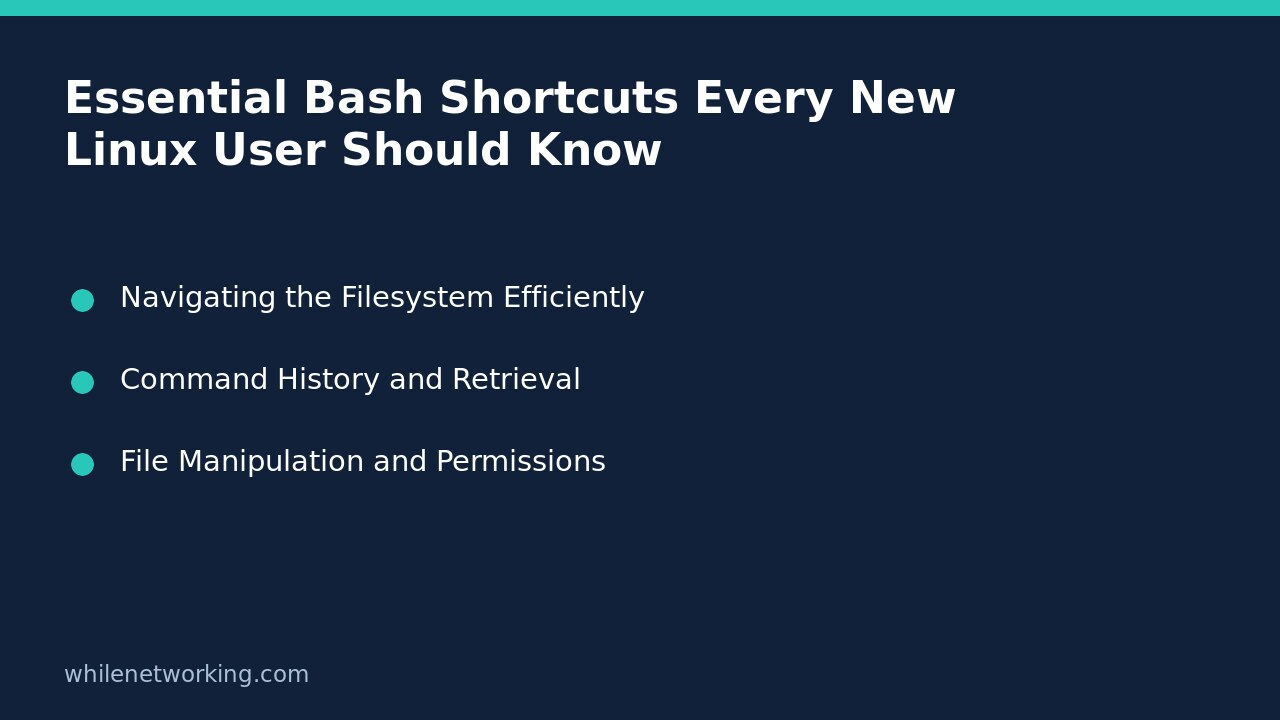
Navigating the Filesystem Efficiently
The first hurdle for many new users is understanding how to move around directories without constantly typing full paths. The cd (change directory) command is fundamental, but combining it with tab completion is a game-changer. When you type a few characters of a folder name and press the Tab key, Bash will automatically complete the path if there is only one match. If multiple matches exist, pressing Tab twice forces a full filename entry, preventing accidental navigation errors.
Another powerful navigation tool is ls -la. While basic ls lists files, adding flags like -l (long format) and -a (all, including hidden files) reveals critical details like permissions and ownership. Hidden files, which start with a dot (e.g., .bashrc), are often overlooked but essential for configuration. To quickly jump back to your home directory from anywhere in the filesystem, simply type ~ and press Enter. This shortcut works regardless of your current location, providing an instant safety net if you accidentally navigate too deep into a subdirectory.
Command History and Retrieval
One of the most frustrating aspects of using a command line is forgetting the exact syntax of a command or needing to re-run a previous action. Bash maintains a comprehensive history log of everything you have typed in the current session. By pressing the Up Arrow key, you can cycle through your recent commands instantly. This allows you to modify a previous command before executing it—for example, changing a file extension from .txt to .log without re-typing the entire directory path or program name.
To manage this history more effectively, the history command displays a numbered list of all executed commands. You can then reference specific entries by typing an exclamation mark followed by the line number (e.g., !123). This is invaluable for re-running complex scripts or debugging processes that occurred earlier in your session. Additionally, the fc -l command lets you view a formatted list of history entries, making it easier to spot patterns or commands you might want to automate later.
File Manipulation and Permissions
New users often struggle with file permissions, leading to “Permission denied” errors when trying to edit system files. The chmod command is used to change these permissions, but understanding the syntax can be tricky. A common mistake is trying to run a script that lacks execute permissions. To fix this, use chmod +x filename. This adds the execute bit to the file, allowing the Bash shell to run it as a program.
When dealing with files, the mv (move) and cp (copy) commands are staples. However, using wildcards can make batch operations much faster. For instance, typing rm *.tmp will delete all temporary files in the current directory. Always exercise caution here; adding the -i flag to remove or copy commands (rm -i, cp -i) prompts you for confirmation before every action, preventing accidental data loss. It is also good practice to use mkdir -p when creating directories, as the -p flag creates parent directories automatically if they don’t exist, saving time on nested folder structures.
Text Processing and Editing
Even without installing a full text editor like Vim or Nano initially, Bash offers built-in tools for quick text manipulation. The cat command is used to display file contents directly in the terminal. If you need to append text to a file rather than overwrite it, use the >> operator followed by the filename (e.g., echo "New line" >> notes.txt). Conversely, > overwrites the existing content.
For searching within files, the grep command is indispensable. It allows you to filter lines containing specific text patterns. For example, grep -i error logfile.txt searches for the word “error” case-insensitively. This is far superior to opening a file in an editor and scrolling through thousands of lines manually. Combining grep with awk or cut can extract specific columns from log files, making it easy to parse system logs or configuration data quickly.
Security Considerations and Best Practices
As you become more proficient with Bash shortcuts, security becomes a paramount concern. Never run commands with sudo unless absolutely necessary, as this grants root access and can lead to accidental system damage. Always verify the path of executables using which before running them to ensure you aren’t executing a malicious script hidden in your PATH.
Be wary of downloading scripts from untrusted sources. Even if a file has a .sh extension, it could contain harmful code. Always inspect the contents with cat or less before executing. Furthermore, avoid using wildcards like * or ? indiscriminately; they can match unintended files and lead to catastrophic data deletion. For instance, typing rm * in a directory containing important documents would delete everything instantly. Always double-check the target of your command, especially destructive ones involving rm, dd, or format.
Conclusion: Building Muscle Memory
Mastering Bash shortcuts is not about becoming a hacker overnight; it is about developing muscle memory that makes system administration intuitive. By utilizing tab completion, leveraging command history, managing permissions correctly, and handling text files efficiently, new users can navigate the Linux environment with speed and safety. These skills form the foundation for advanced topics like scripting, automation, and system debugging.
Remember that while these shortcuts are standard across most modern distributions like Ubuntu, Fedora, and Debian, specific behaviors or available commands might vary slightly depending on your version of Bash or the underlying operating system. Always consult your specific distribution’s documentation if a command behaves unexpectedly. With practice, what once seemed complex will become second nature, allowing you to focus on solving problems rather than wrestling with the terminal itself.