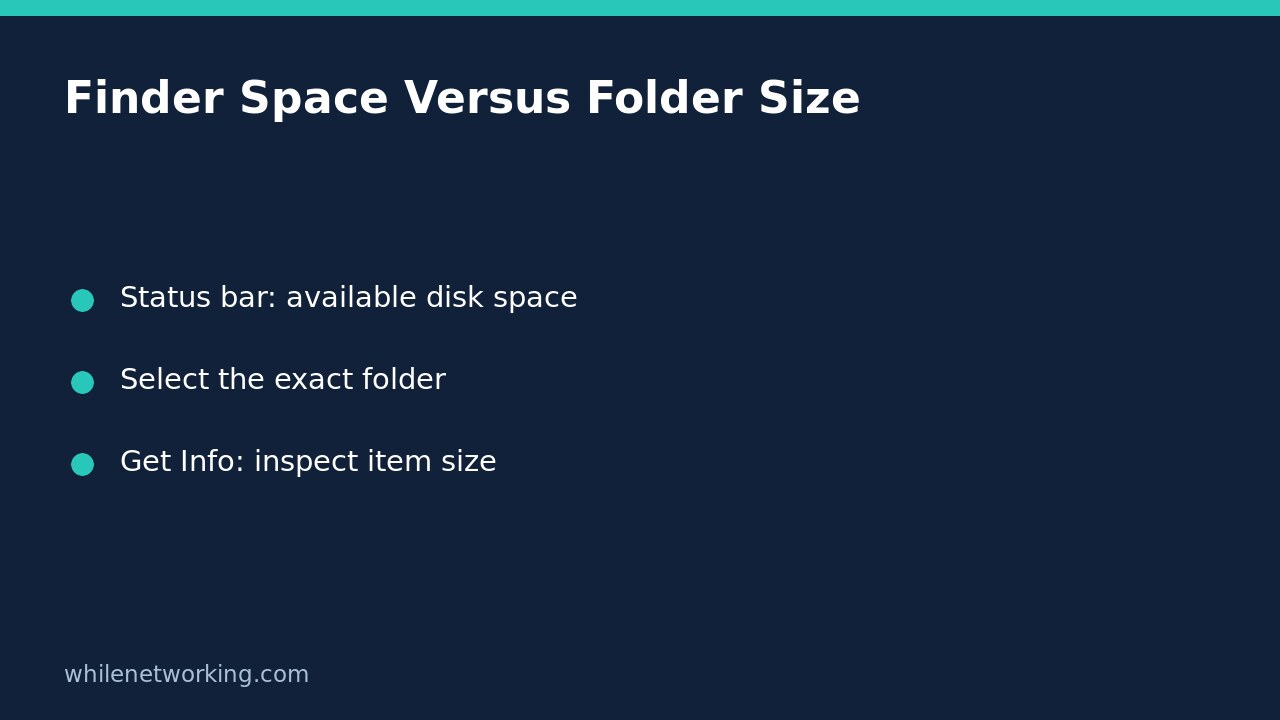

The available-space figure in a Finder window is not the size of the folder you have opened. Apple describes the Finder status bar as showing the number of items in the disk or folder and the amount of available disk space. To inspect a particular folder instead, select that folder and choose File > Get Info, or press Command-I.
This distinction matters when you are preparing a client handover or copying a project to an external drive. A window showing plenty of available space does not tell you how much data the project contains, and a file count is not a size measurement.
Identify which number you are actually reading
Open the relevant location in Finder. If the status bar is hidden, choose View > Show Status Bar. Treat its available-space figure as information about storage availability, not as an answer to “How big is this folder?” Moving between folders on the same storage volume need not produce a different available-space figure.
Similarly, the number of items does not establish the total number of files throughout a nested project. Do not turn a convenient window summary into an inventory of every descendant. A folder containing a few subfolders can still contain substantial data below them.
Select the folder itself before opening Get Info
- Navigate to the parent folder so that the project appears as a selectable item.
- Click the intended project folder once. Check its name before continuing.
- Choose File > Get Info or press Command-I.
- Read the item name, location and size information in the information window. Allow a pending calculation to finish rather than recording an unfinished value.
- If you need to inspect the destination drive, select that disk separately and open its own information window.
A common mistake is opening a folder, selecting one document inside it and assuming Get Info describes the containing project. The selected item determines what you are inspecting. For an unambiguous beginner workflow, inspect one item at a time and close its information window before moving on.
If identical folder names exist in several places, use the location as a cross-check. Our guide to copying a folder path with the Finder path bar explains how to identify the containing folders without renaming or moving anything.
Use a copy-planning note rather than one isolated figure
For a hypothetical handover, suppose you have a working project, an older exported copy and a destination USB drive. First record the working project’s exact location and its reported size. Next inspect the USB drive’s available space separately. Finally, confirm that the old exported copy is not the folder you accidentally measured.
Keep these observations in separate fields: source path, source size, destination identity and destination available space. Do not label the destination’s available space as “project size.” This simple separation makes it easier for another person to repeat the check.
Capacity checking remains a preflight, not a guarantee that a copy will finish. Access permissions, destination limitations, cloud-only content and changes made during the copy can require additional checks. A size figure also does not establish that every expected document is present or readable. Keep the original until you have checked the delivered copy.
When the display is still confusing
- The available-space figure stays the same: confirm whether you are simply opening different folders on the same volume. That alone is not evidence of a broken status bar.
- You only see names and dates: use Get Info for the selected item rather than changing unrelated Finder preferences.
- You need quick visual clues: Apple also documents Show Item Info in Icon view and a Preview pane. These are convenience views, not substitutes for checking the exact source and destination.
- The item is in cloud storage: inspect its cloud status separately. A displayed folder size should not be treated as proof that an offline handover is complete.
Quick questions before sending the folder
Does available space belong to the open folder? No. It is available disk-space information, not that folder’s size.
Does Get Info create a copy? No. Inspecting information does not duplicate the project or create a backup.
How do I undo the display change? Choose View > Hide Status Bar if you no longer want the bar, and close the information window. No file rollback is needed for these inspection steps.
Source: Apple’s file, folder and disk information instructions support the status-bar distinction and Get Info workflow. Interface wording can differ by macOS version.
Safety: This tutorial is for educational purposes. Test workflows carefully before production use. The site owner is not responsible for misuse, damage, data loss or production issues. These inspection steps are not a backup or an instruction to delete originals.