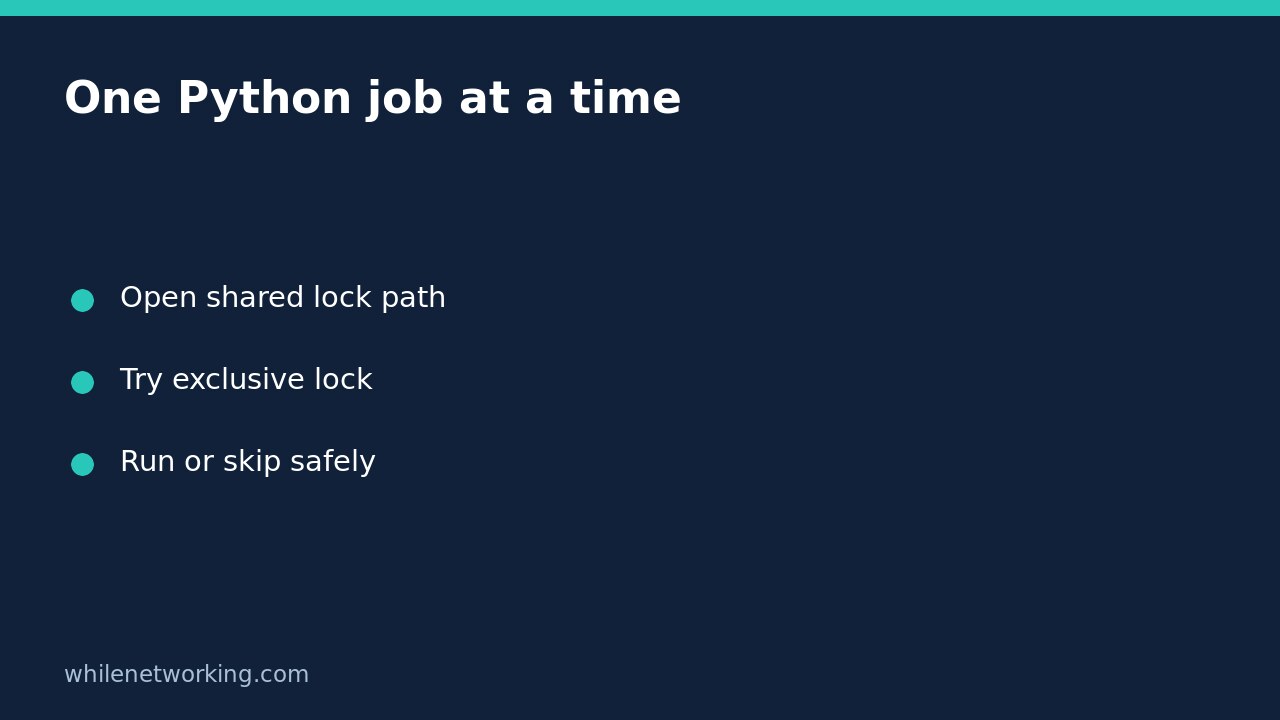

If a scheduled Python task sometimes takes longer than its scheduling interval, two copies can run together. A nonblocking file lock lets the first copy continue while the second exits without touching the workload. On Linux, Python’s standard-library fcntl.flock provides a small, practical building block for this pattern.
This tutorial is for cooperating processes on one Linux machine using a local filesystem. It is not a distributed lock for multiple cloud instances, a Windows solution, or a replacement for database transactions. Every invocation must use the same lock path and follow the same locking convention.
Choose a stable lock path before adding code
Create a private working directory owned by the account that runs your task. Place the script below there as job_lock_demo.py. Its lock file lives beside the resolved script, so launching that same script from a different working directory does not silently create a different lock.
Do not place the lock in a directory where untrusted users can replace files. Separate copies of the script in different directories will have different locks. For a real deployment, choose one explicit, shared absolute path and document it alongside the scheduler configuration.
Acquire the lock without waiting indefinitely
The following demonstration only prints messages and sleeps. It does not modify business data. The file remains open for the entire protected operation; closing it at the end releases the lock. Opening in append mode avoids truncating an existing file before ownership is established.
import errno
import fcntl
from pathlib import Path
import time

lock_path = Path(__file__).resolve().with_name('job.lock')

with lock_path.open('a') as lock_file:
    try:
        fcntl.flock(lock_file, fcntl.LOCK_EX | fcntl.LOCK_NB)
    except OSError as exc:
        if exc.errno in (errno.EACCES, errno.EAGAIN):
            print('Another invocation holds the lock; skipping.')
            raise SystemExit(0)
        raise

    print('Lock acquired; demonstration work begins.', flush=True)
    time.sleep(20)
    print('Demonstration work finished.')
LOCK_EX requests exclusive ownership, while LOCK_NB makes acquisition nonblocking. The Python documentation describes checking both EACCES and EAGAIN for lock contention. Other errors are deliberately raised rather than being presented as a harmless overlap. A permissions problem must not disappear into a misleading success message.
Test overlap using two terminals
In the first terminal, run python3 job_lock_demo.py. While it is sleeping, run the same command against the same script in a second terminal. The intended result is one working invocation and one skip message. These are expected demonstration outcomes, not measurements from your server.
After the first process exits, run the command again. It should acquire the lock. If both copies enter the protected section, check that they resolve to the same script directory and lock file, and that both actually execute the locking code. Do not conclude that a shared network filesystem behaves like a local filesystem; confirm its locking semantics separately.
Keep the file, and make skip behaviour observable
A leftover job.lock file does not mean the job is still running. The active operating-system lock, not the filename’s existence, controls ownership. Do not unlink the file during routine cleanup: replacing the path while another process holds the old file can allow different processes to lock different underlying files.
Returning zero for an intentional skip can be suitable when overlapping runs are redundant. If each trigger represents unique work, silently skipping may lose that work. Use a durable queue or record a missed-run event instead. Count skips in logs so repeated contention reveals a growing backlog or an unexpectedly slow job.
Keep all protected work inside the open-file block. If you launch background work that outlives that block, the parent’s lock lifetime may no longer match the actual workload. Similarly, releasing a lock does not undo a partially completed external action. Combine overlap prevention with idempotent operations and atomic state-file writes where local progress records are needed.
Checklist and common questions
- Use one documented lock path and a trusted local directory.
- Acquire before reading or changing shared workload state.
- Log intentional skips separately from real failures.
- Keep the descriptor open until protected work finishes.
- Do not delete the lock file to force another invocation through.
Does this stop unrelated programs editing the same data? No. Treat this as cooperative locking, not access control. Programs that ignore the convention still need appropriate permissions and data-integrity controls.
How do I roll back the demonstration? Let the demo finish, or interrupt it in its terminal. Remove the demonstration from scheduling before replacing a production locking strategy; do not disable protection while another run is active.
Source: Python’s official fcntl documentation explains flock, lock constants and operating-system limitations.
Safety: This tutorial is for educational purposes. Test carefully before production use. The site owner is not responsible for misuse, damage, data loss, or production issues.