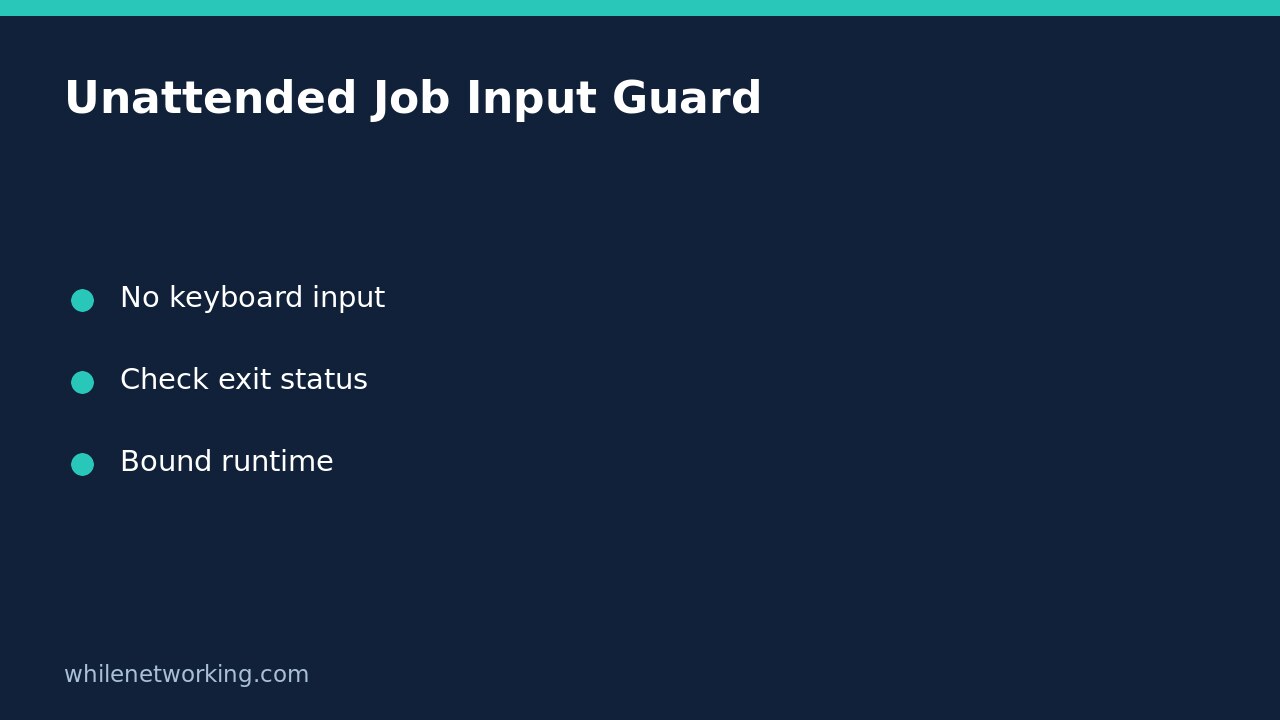

A Python automation wrapper should not assume somebody will answer a child program’s confirmation prompt. For commands that should never read standard input, launch them with stdin=subprocess.DEVNULL. Reads then encounter end-of-file instead of borrowing the wrapper’s input stream. Pair this with the tool’s documented noninteractive mode, an explicit exit-status check and a timeout. Closing standard input is an input policy, not permission to approve an operation.
Why capturing output does not disable prompts
By default, subprocess.run() leaves standard input inherited. Whether a prompt blocks, fails immediately or consumes unexpected data therefore depends on how the wrapper was launched. A terminal session and a scheduler can behave differently. Setting capture_output=True captures standard output and standard error; it does not independently disable standard input.
The official Python subprocess documentation defines DEVNULL as the special value that connects a stream to the operating system’s null device. Using the constant is portable; hard-coding a Unix device path is unnecessary. It also documents that check=True raises an exception for a nonzero exit status. Together these settings make an unexpected request for ordinary input easier to detect.
Reproduce the behaviour with a harmless child program
This complete Python example launches only another Python interpreter. It changes no files and performs no administrative action. Save it as input_guard_demo.py and run it with Python 3. The child deliberately asks for input, catches end-of-file and exits with status 2 so the wrapper can identify the failed interaction.
import subprocess
import sys

child = '''
import sys
try:
    input("Enter a confirmation: ")
except EOFError:
    print("No interactive input available", file=sys.stderr)
    raise SystemExit(2)
'''

try:
    result = subprocess.run(
        [sys.executable, "-c", child],
        stdin=subprocess.DEVNULL,
        capture_output=True,
        text=True,
        timeout=5,
        check=True,
    )
except subprocess.CalledProcessError as exc:
    print(f"Child failed with status {exc.returncode}")
    print(exc.stderr.strip())
except subprocess.TimeoutExpired:
    print("Child exceeded the runtime limit")
else:
    print(result.stdout)
The intended result is the failure-handling branch, not a successful confirmation. The prompt itself is captured in standard output and the diagnostic is captured in standard error. In a real scheduler wrapper, propagate failure to the scheduler after recording a suitable diagnostic; do not turn every caught exception into a successful job exit. This demonstration catches the exception only to make the mechanism visible.
Apply the guard without accidentally answering yes
- Find the child tool’s documented batch, noninteractive or preview option. Verify whether it refuses missing information or chooses a default.
- Build an argument list with the intended executable and explicit options. Avoid adding a shell simply to construct a pipeline of automatic answers.
- Set
stdin=subprocess.DEVNULLonly when the tool should not receive input data. Keepcheck=Trueand a workload-appropriate timeout. - Test a missing-configuration case in a disposable environment. Confirm that failure leaves the target unchanged and that the scheduler receives a failure status.
Do not replace a confirmation prompt with an endless stream of yes answers. An unfamiliar or changed prompt could then authorise something unintended. Likewise, a program may interpret end-of-file as acceptance of its own default: review its documented behaviour rather than assuming DEVNULL always means refusal. For change-making automation, retain a separate preview-first, explicit-apply design.
Know the limits and avoid hiding diagnostics
Some tools open a terminal directly, launch a graphical dialogue or wait on a network service instead of reading standard input. DEVNULL does not prevent those behaviours. Keep a runtime bound and read the related explanation of subprocess timeouts. Python documents termination and waiting for the direct child on timeout; do not assume every descendant process is automatically cleaned up.
Capturing output holds it in memory, so this small example suits bounded diagnostics, not an unlimited log stream. For noisy long-running tools, design file or streaming logging separately. Do not discard standard error merely because standard input is disabled, and redact credentials before storing diagnostic output.
Quick checks before enabling the schedule
- Does the command need actual input? If so, supply that input deliberately rather than DEVNULL. Python’s
input=parameter cannot be combined with an explicitstdin=argument. - Did the tool exit successfully? Check the status and validate the expected result; lack of a prompt is not proof of completed work.
- Can you roll back? This demonstration changes nothing. Before adapting it to real writes, retain a known-good configuration and test the tool’s recovery procedure.
This tutorial is for educational purposes. Test carefully before production use. The site owner is not responsible for misuse, damage, data loss or production issues.